
Knowledge Base
Enable Tia troubleshooting in TeamViewer
Last Modified: Sep 17, 2026
Tia (TeamViewer Intelligent Agent) helps support teams troubleshoot technical issues more efficiently during remote sessions. Administrators can enable Tia capabilities for their organization and decide which troubleshooting modes are available to users. Depending on the assigned package, Tia can provide troubleshooting guidance, perform diagnostics, and assist with issue resolution. Tia is available directly within TeamViewer remote sessions.
This article applies to TeamViewer administrators who configure Tia troubleshooting for connections to managed devices on the following licenses: Premium, Corporate, Tensor, and TeamViewer ONE (Standard, Advanced, and Enterprise).
Available Tia modes
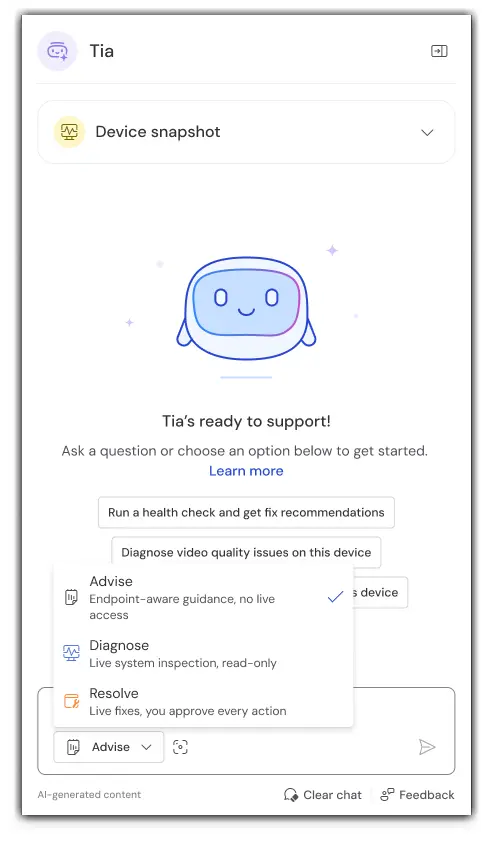
Tia includes three troubleshooting modes that provide different levels of assistance.
Advise mode (Basic)
Advise mode provides troubleshooting guidance based on device context and available knowledge sources, including past Session Insights. It is a chatbot-like experience.
Diagnose mode (Advanced)
Diagnose mode provides real-time, read-only diagnostics of the remote device using troubleshooting tools. These tools can be either approved scripts from the TeamViewer Tool Catalog or ad hoc scripts generated by Tia when no suitable catalog tool is available. All tools used in Diagnose mode are read-only and do not make changes to the device.
Resolve mode (Advanced)
Resolve mode extends diagnostics with remediation capabilities. Users must approve any system-changing actions before they are executed.
In this mode, Tia uses approved TeamViewer scripts whenever possible to resolve issues. If no suitable script is available, Tia can generate and propose a custom script for the specific issue.
The use of ad hoc system-changing scripts must be explicitly enabled by administrators and is not included in the End-to-end resolution package by default. Because these scripts are AI-generated and can make changes to a device, they should be reviewed carefully before execution.
Requirements
The available Tia capabilities depend on your license and endpoint configuration.
- Advise mode is available for Business, Premium, Corporate, Tensor, and TeamViewer ONE customers when connecting to Mac and Windows devices.
- Diagnose and Resolve modes are available for Premium, Corporate, Tensor, and TeamViewer ONE customers. Diagnose and Resolve modes require managed devices. The remote device must be registered with your company, and the TeamViewer Remote Client must already be installed. For more information on Managed devices, please see here.
- Diagnose and Resolve modes also require an additional module, the TeamViewer Automation Client, which connects only locally to the TeamViewer Remote Client.
How to deploy the TeamViewer Automation Client
- Open Admin settings from the bottom left corner.
- Go to TeamViewer AI.
- Click on Tia Troubleshooting.
4. Click on Manage deployment.
5. Go to the Pending tab and click Deploy.
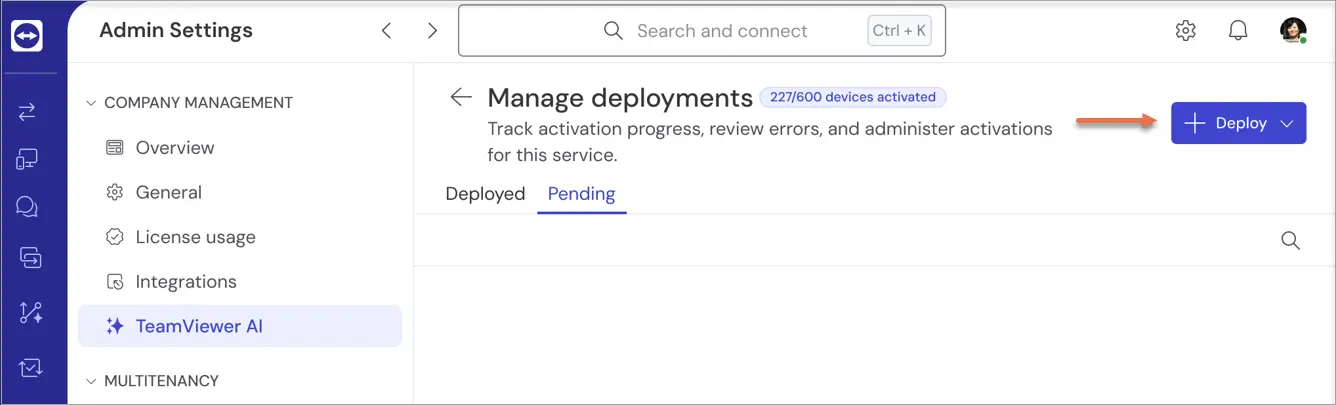
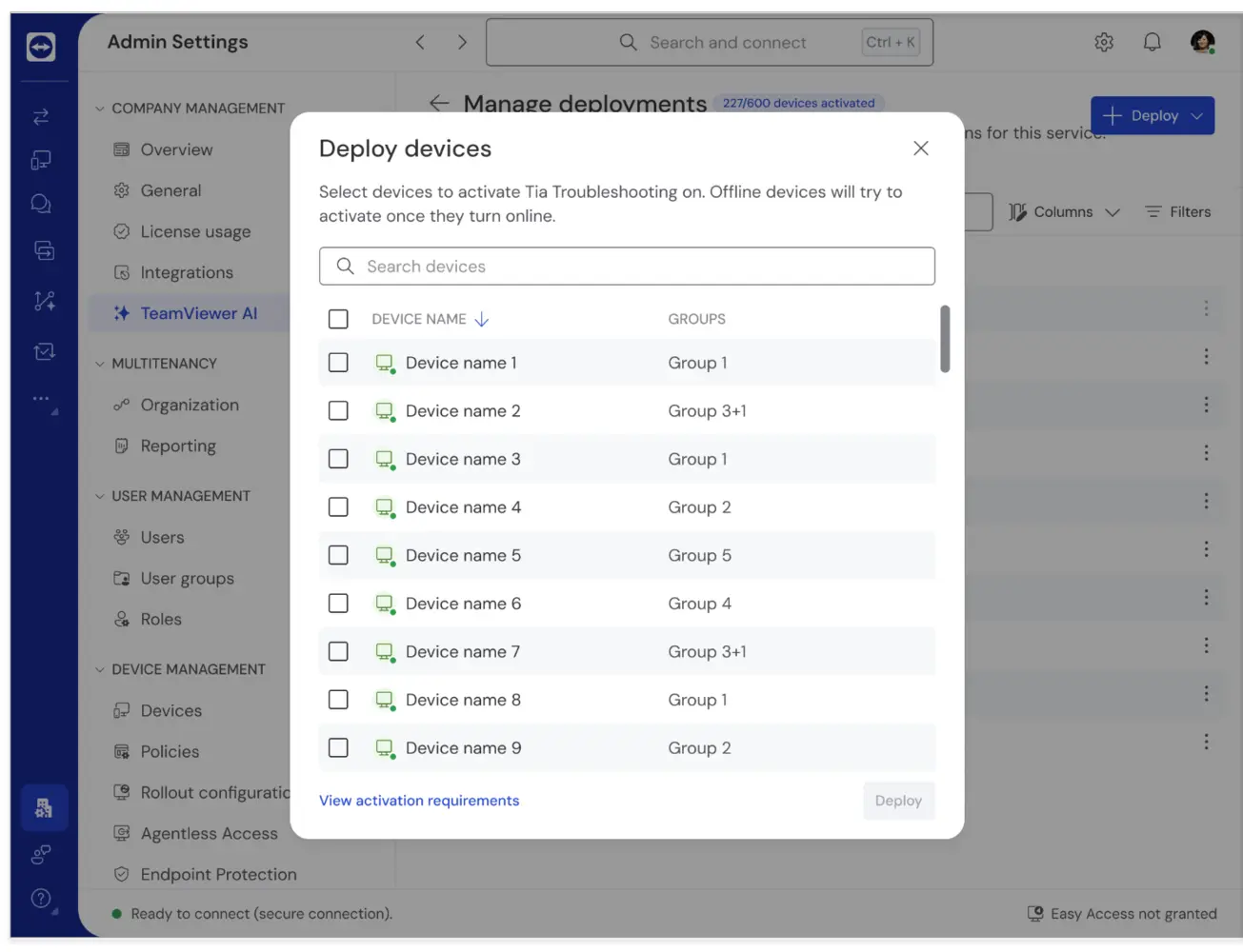
6. Select device groups or devices you want the TeamViewer automation client to deploy, and confirm.
7. Click on the Three dots to assign users their Tia packages.
8. Select Manage users.
9. Continue by assigning the users or user groups.
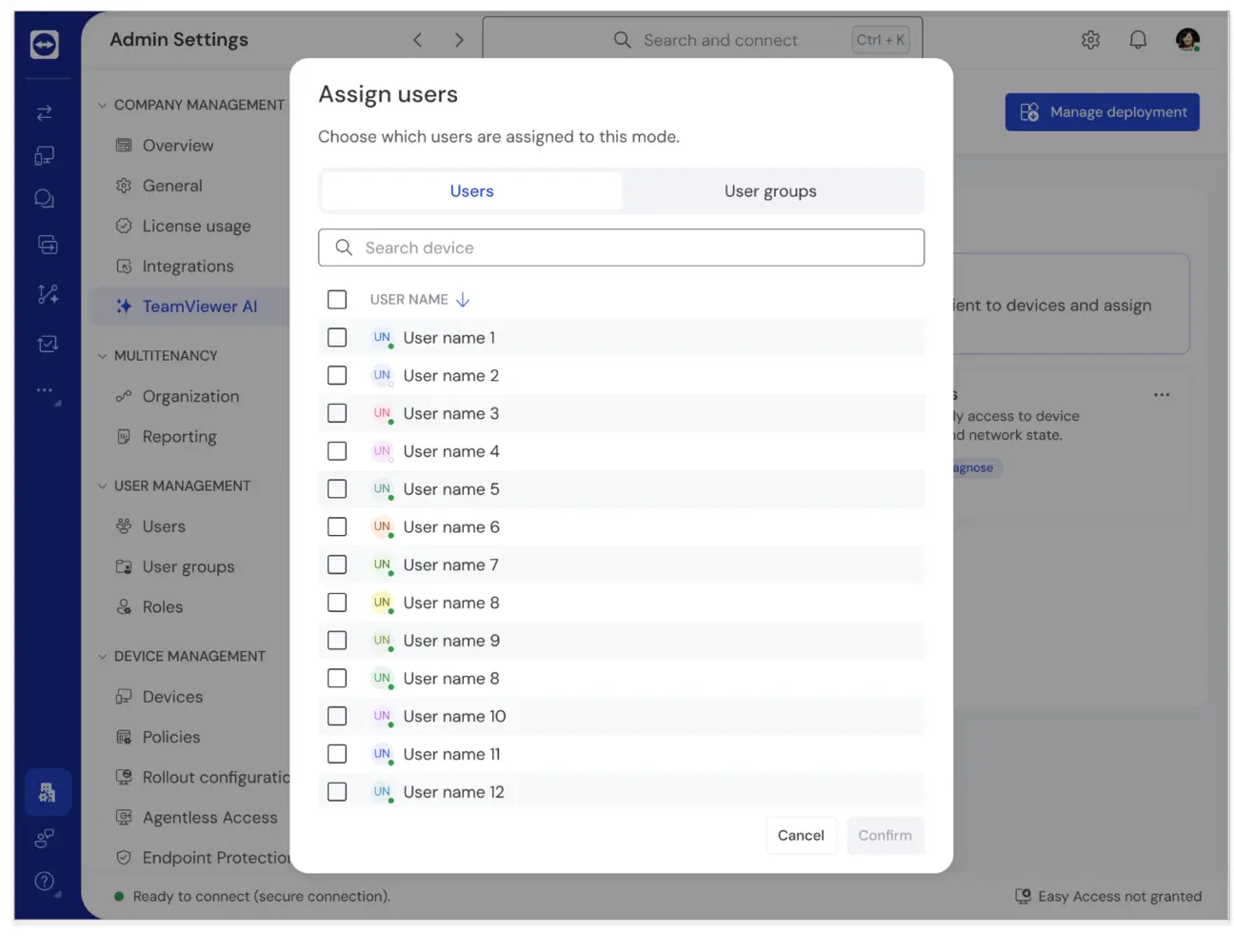
10. Finally, click on Confirm.
How to assign Tia packages
After the required client setup is complete, administrators can assign Tia capabilities to users and user groups. Three packages are available, with the entry-level package assigned by default. Administrators can decide which package each user or group receives.
Restrict Tia access on sensitive devices
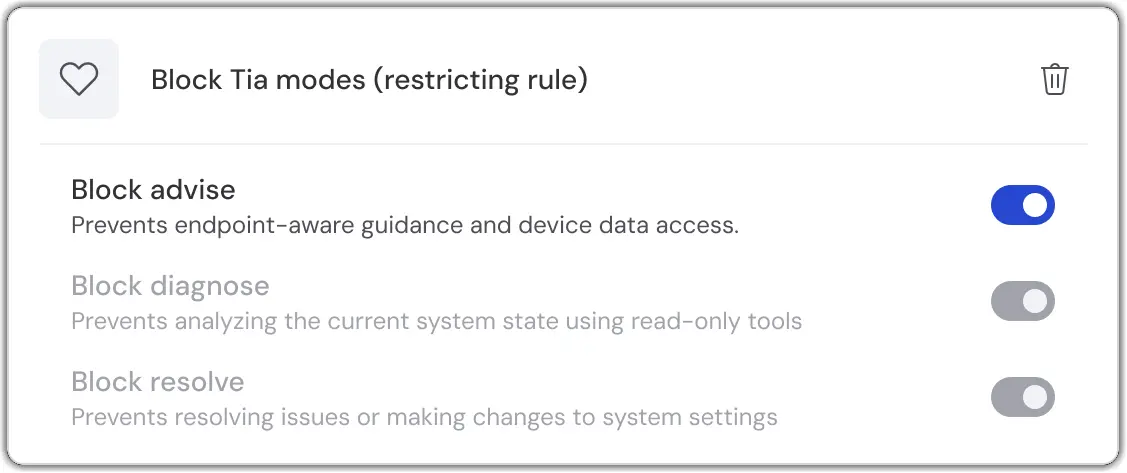
Organizations can use the Block Tia Modes restricting policy to control or prevent Tia access on selected managed devices.
This policy can help protect:
- Executive or VIP devices
- Production servers
- Shopfloor devices
- Operational technology (OT) systems
- Devices subject to regulatory requirements
Review Tia activity
For organizations with compliance and auditing requirements, Tia provides audit traces for troubleshooting activities performed during remote sessions.
When Session Insights is enabled, administrators can review troubleshooting activity through:
- Connection Reports
- Session Insights overview pages
Audit traces help organizations support accountability and governance requirements.
Note: Tia troubleshooting is currently available in English. Additional languages will be supported in a future release, allowing users to interact with Tia troubleshooting and receive responses in their preferred language.
For information about using Tia during remote sessions, see Use Tia to troubleshoot IT issues