
Knowledge Base
Auditability / Event Log
Last Modified: Aug 4, 2026
Audit user actions to detect risks, comply with data security requirements, and improve support services. Log all user activity, record remote sessions, and set user policies for complete audibility and visibility of who is doing what, when, and for how long.
With TeamViewer Tensor, you can ensure your enterprise stays compliant with security protocols and internal requirements while detecting security risks before they impact your business. Built-in reporting log captures all remote session activities and Management Console actions: who did what, when, and for how long for every incoming and outgoing connection.
Critical for security purposes, these audit logs can only be viewed by designated IT admins with appropriate user permissions.
- Opt-in/opt-out decide if an activity log for remote sessions and Admin settings is needed or not.
- Assign specific user permissions authorizing access to view reports.
- Maintain accountability and provide precise billing for services.
- Track customer satisfaction with session comments and customer feedback forms to improve services.
- Cut costs by eliminating the need for third-party logging tools.
- Automatically video record all session activity; record every remote desktop connection without allowing end users to pause or stop the recordings.
- Save all session recordings to specified networks or local drive locations.
This article applies to all TeamViewer customers with a Tensor license, using TeamViewer version 14.1 or higher and running Windows, Mac, and Linux.
How to activate event logs
By default, event logging is not activated for your company, as you should get general consent within your company about the collection and usage of the data.
Activating event logging can only be done as a company admin.
To activate event logging, please follow the instructions below:
- Sign in with your account at https://web.teamviewer.com/.
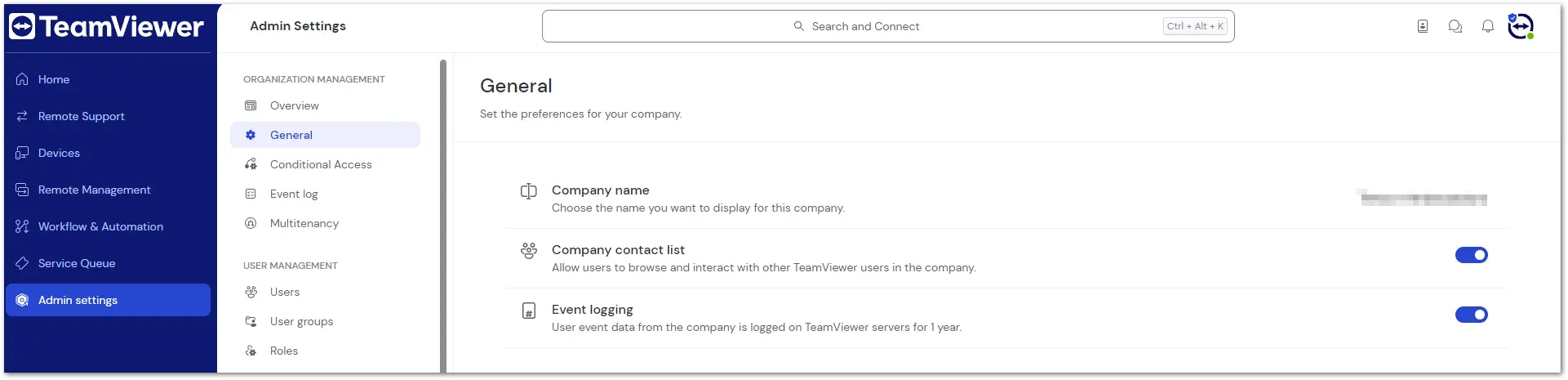
- Go to Admin Settings ➜ General.
- Enable the Event logging toggle.
Now, certain activities of all users that belong to your company will be logged.
How to grant access to event logs
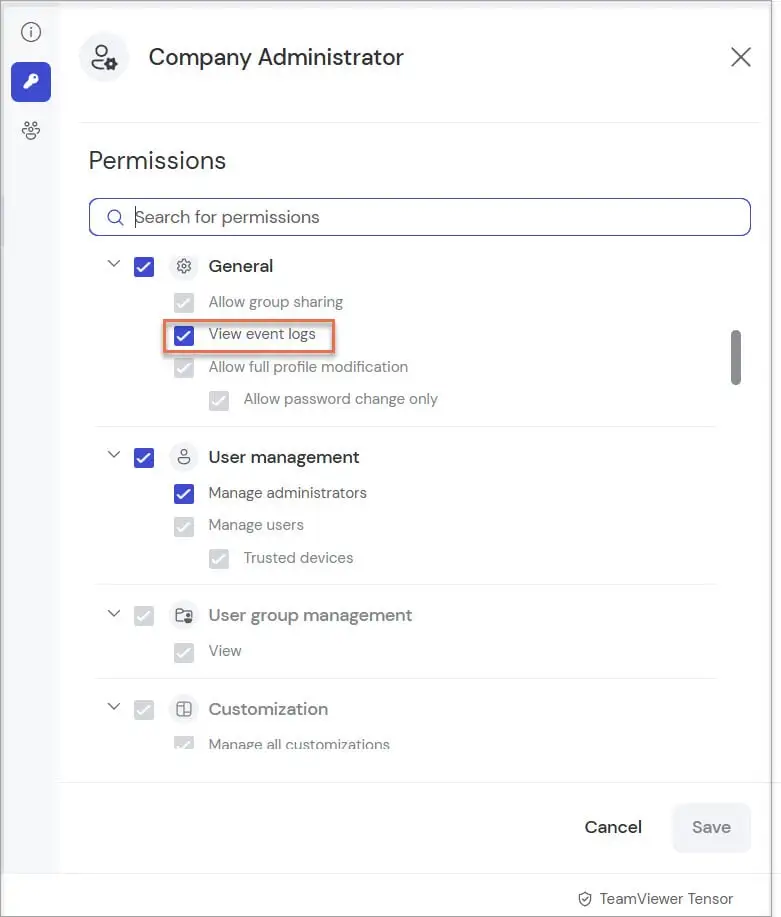
Your company admin can grant you access to the Event Log dialog page by creating a role with the View event logs permission checked on.
1. Go to Admin settings.
2. Navigate to Roles.
3. Click on the user you wish to grant access to.
4. On the modal that opens, click on the Key Icon to view permissions.
5. Under General, check the View event logs box.
Hint: For more details about creating and managing user roles, please check our dedicated article: Roles
How to watch and filter event logs
When you have access to your company's event logs, go to Event logs in the left navigation panel of the Admin settings.
If event logging is active for your company, you will see the following screen:
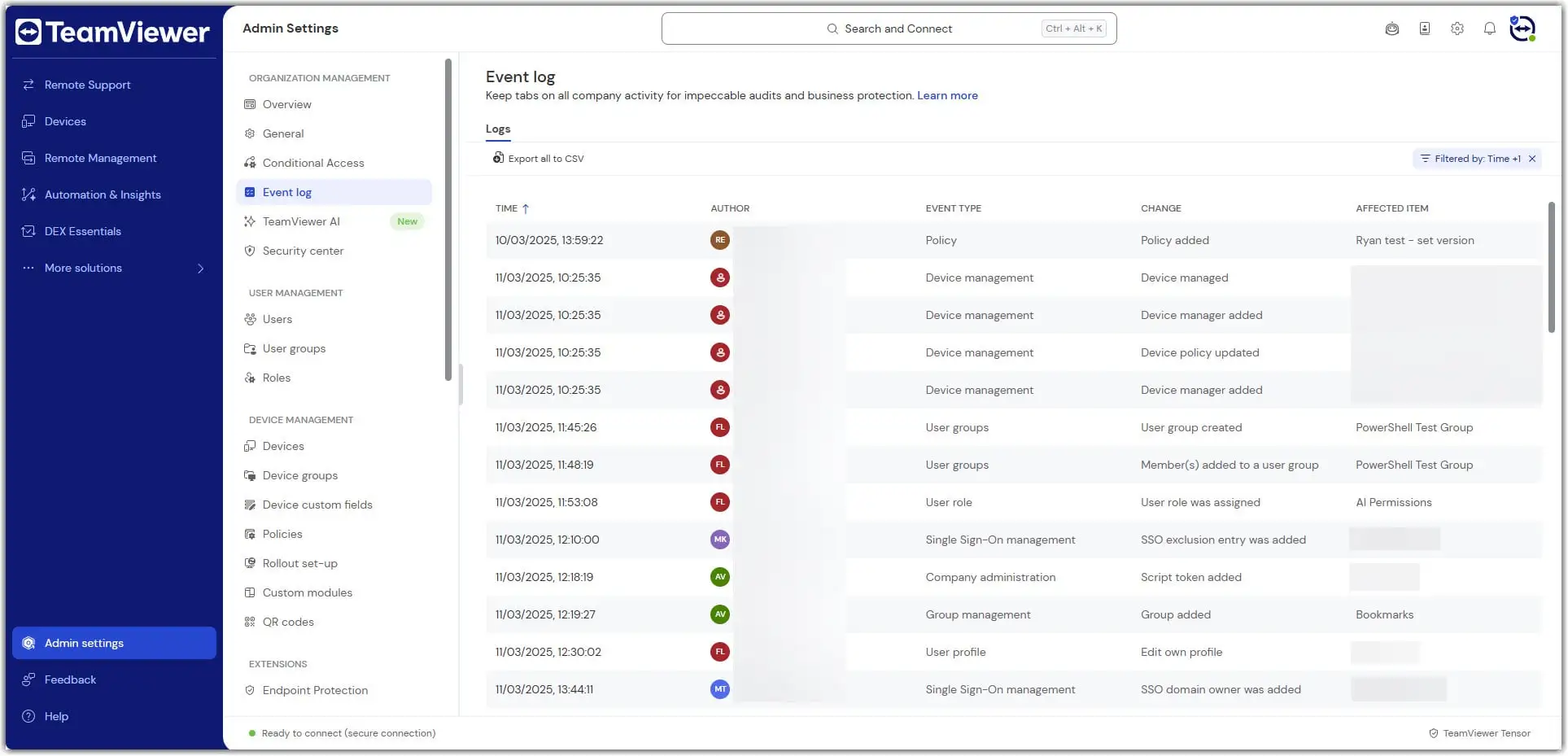
You can now start to search for specific events by using the given filter possibilities:
- Date range is up to one year when web client (https://web.teamviewer.com) is used.
- User: Use this filter to search for events a specific person executes.
- Change: Use this filter to search for a certain change made by any user.
- Event type: use this filter to search for multiple events grouped under a certain category. It will help you, for example, to search for all changes done by any user in the User Management.
Now, you can click on single events to see more details for each event.
How to see event logs of incoming connections
With Incoming connection logging, you can audit what happened during the connections to the end user's devices.
Requirements
- Your devices must be placed within a assigned to your company.
- TeamViewer Host needs to be installed on the end user's devices. This feature is not compatible with the full client.
Incoming connections logged via Auditability can be found in the Event Log by looking for entries with a TeamViewer ID as Author.
Incoming connection
- Any entry which shows a TeamViewer ID only belongs to an incoming connection.
- This is because it's the device that provides the information for the Event Log, i.ethe device is the author of this information.
The device that got accessed
- ID of presenter shows the TeamViewer ID, which had the incoming connection.
- Name of presenter is empty in this case; assigning to an account is not possible in TeamViewer Host.
The device the connection came from
- ID of participant shows which device is connected to the Host.
- If an account was used on that device, the account's display name shows in Name of participant.
Active permissions
- The permissions show which rights the person who connected to the Host had during the connection.
Note: File transfers are also logged for incoming connections.
How to download event logs
When you have access to the event logs of your company, navigate to Event logs on the left navigation panel at https://web.teamviewer.com/ or via the client.
To download events, apply your filters and click "Download Events" afterward. You will receive a CSV file containing the filtered events.
We recommend importing the CSV file into Excel to have a good overview of all the downloaded events.
CSV columns
The CSV file contains multiple columns that provide details about the recorded event. The following columns exist:
- Date: the date when the event was logged. The date logged in this column reflects the server date.
- Time: the time when the event was logged.
- DateTime (ISO8601): the date, time, and timezone in ISO8601 format of the logged event.
- Author: this is the person who executed the event. The user name displays the author or, if not available, the TeamViewer ID.
- Change: This is the event the author performed (in a short and readable format).
- Event type: this is a category each event belongs to. It will help to group for certain event types, e.g., when you are only interested in changes that have been done to user properties all over the company
- Affected item: the object on which the change was made
- Property: the detailed property that was changed on the affected item, e.g., the user name of a user object
- Old value: this column is only filled when an object was changed or deleted, but not when it was created. If an object was changed, the old value is listed for you to see how the value was changed. If an object gets deleted, the old value shows the value the object had before deletion.
- New value: this column shows the (new) value of the changed property.
- Email: The email address of the person executing the event.
Whose data is collected during remote control sessions?
Event data during remote control sessions are only collected from users authenticated as company member that has enabled event logging.
Examples of a remote control session with two users:
| User 1 (initiator of the RC session) | User 2 | whose event data is collected? | |
|---|---|---|---|
Company member (authenticated) | Company member (authenticated) | User 1 and user 2 | |
Company member (authenticated) | Company member (not authenticated) | User 1 | |
Company member (authenticated) | Foreign user (authenticated) | User 1 | |
Company member (authenticated) | Foreign user (not authenticated) | User 1 | |
Company member (authenticated) | Quick support user | User 1 | |
Foreign user (authenticated) | Company member (not authenticated) |
|
Data retention
All event data is logged on TeamViewer servers (in Frankfurt) for one year. This retention period can't be changed. After one year, all data will be automatically and completely deleted.
Event log REST API
The event log can also be retrieved via the REST API. You will find more information here: Use the TeamViewer API
List of Events
This is the list of events TeamViewer catches and stores:
| User action | Short event name | Event origin | Event type | |
|---|---|---|---|---|
Used authentication to initiate a remote session | - | Remote Session | Session | |
Initiate a remote session | Started session (event name for initiator) Incoming session (event name for receiver) | Remote Session | Session | |
Closed a remote session | Ended session | Remote Session | Session | |
The user joins/leaves a running remote session | Joined session Left session | Remote Session | Session | |
Additional user joins/leaves a remote session | Participant joined session Participant left session | Remote Session | Session | |
Trigger switching of sides during a remote session | Switched sides | Remote Session | Session | |
Activate/deactivate remote input during a remote session | Changed Disabled Remote Input (event name for initiator) Received Disabled Local Input (event name for receiver) | Remote Session | Session | |
Activate/deactivate black screen during a remote session | Changed Show Black Screen (event name for initiator) Received Show Black Screen (event name for receiver) | Remote Session | Session | |
Start screen recording | Started recording (event name for initiator) | Remote Session | Session | |
Stop screen recording | Ended recording (event name for initiator) | Remote Session | Session | |
Pause screen recording | Paused recording (event name for initiator) | Remote Session | Session | |
Continue screen recording | Resumed recording (event name for initiator) | Remote Session | Session | |
Start a file transfer | Sent file (event name for initiator) Received file (event name for receiver) | Remote Session | Session | |
Editing own user properties | Edit own user profile | Management Console | User profile | |
Activating/deactivating TFA of own account | De-/activate TFA | Management Console | User profile | |
Creating a user in the Management Console | Created user | Management Console | User profile | |
Editing user properties | Edit user properties | Management Console | User profile | |
Editing user permissions | Edit user permissions | Management Console | User profile | |
Deleting a user | Delete user | Management Console | User profile | |
Join a company | Join company | Management Console | Company Administration | |
Creating a new custom host module | Create custom host module | Management Console | Custom Modules | |
Editing a custom host module | Edit custom host module | Management Console | Custom Modules | |
Delete a custom host module | Delete custom host module | Management Console | Custom Modules | |
Create a new group | Add group | Management Console | Group Management | |
Share a group | Share group | Management Console | Group Management | |
Edit a group | Edit group | Management Console | Group Management | |
Delete a group | Delete group | Management Console | Group Management | |
Create a new script token | Create Script Token | Management Console | Company Administration | |
Edit script token properties | Edit Script Token | Management Console | Company Administration | |
Edit existing script token permissions | Edit Script Token Permissions | Management Console | Company Administration | |
Delete a script token | Delete Script Token | Management Console | Company Administration | |
Adding a policy | Policy added | Management Console | Policy | |
Editing a policy | Policy updated | Management Console | Policy | |
Deleting a policy | Policy deleted | Management Console | Policy | |
Add user to a user group | User group added | Management Console | UserGroup | |
Delete user to a user group | User group deleted | Management Console | UserGroup | |
Rename user in a user group | User group updated | Management Console | UserGroup | |
Add account to a user group | Member(s) added to a user group | Management Console | UserGroup | |
Remove account from a user group | Member(s) removed from a user group | Management Console | UserGroup | |
User toggled Block Meetings switch | Block meeting state changed | Management Console | Conditional Access | |
User created a new directory group via Web API | Directory group added | Management Console | Conditional Access | |
User deleted a directory group via Web API | Directory group deleted | Management Console | Conditional Access | |
User added members to a directory group via Web API | Members added to directory group | Management Console | Conditional Access | |
User removed members from a directory group via Web API | Members deleted from directory group | Management Console | Conditional Access | |
User created a new conditional access rule | Rule added | Management Console | Conditional Access | |
User deleted a conditional access rule | Rule deleted | Management Console | Conditional Access | |
User edited expiration settings of an existing rule | Rule modified | Management Console | Conditional Access | |
User toggled Activate Conditional Access switch | Rule verification changed | Management Console | Conditional Access | |
A conditional access session went through approval process | Session approval | All platforms |
| |
Policy is assigned/updated/unassigned to device | Device policy updated | MCO/TVRemote | Device Management | |
Add managers to device | Device manager added | MCO/TVRemote | Device Management | |
Update manager permissions to device | Device manager updated | MCO/TVRemote | Device Management | |
Remove managers from device | Device manager removed | MCO/TVRemote | Device Management | |
Add device to device group | Device added to group | MCO/TVRemote | Device Management | |
Remove device from group | Device removed from group | MCO/TVRemote | Device Management | |
Create a device group | Device group created | MCO/TVRemote | Device group management | |
Delete a device group | Device group deleted | MCO/TVRemote | Device group management | |
Update the name of a device group | Device group name updated | MCO/TVRemote | Device group management | |
Add managers to device group | Device group manager added | MCO/TVRemote | Device group management | |
Update the permissions of the managers to device group | Device group manager updated | MCO/TVRemote | Device group management | |
Remove managers from a device group | Device group manager removed | MCO/TVRemote | Device group management | |
Policy is assigned/updated/unassigned to group | Device group policy updated | MCO/TVRemote | Device group management | |
Alias updated to device | Device alias updated | MCO/TVRemote | Device management | |
Description updated to device | Device description updated | MCO/TVRemote | Device management | |
Manage this device | Device managed | MCO/TVRemote | Device management | |
Unmanage the device | Device unmanaged | MCO/TVRemote | Device management | |
Invitation code created to invite other companies to join parent’s multitenancy organization. | Invitation created | TV Remote | Multitenancy | |
Invitation code is revoked by main company and can no longer be used by any other company. | Invitation created | TV Remote | Multitenancy | |
Invitation code used by other company, requesting to join creator’s organization. | Relation request created | TV Remote | Multitenancy | |
Parent company reviewed the request sent (approving/rejecting it). | Relation request created | TV Remote | Multitenancy | |
Child company, who requested to join an organization, revoked the pending request, cancelling it. | Relation request created | TV Remote | Multitenancy | |
Relation is terminated by any side. | Relation deleted | TV Remote | Multitenancy | |
User from parent invited to access a child company as a tenant manager. | Tenant manager request created | TV Remote | Multitenancy | |
Child reviews (accepts/declines) a request to access its environment. | Tenant manager request updated | TV Remote | Multitenancy | |
Parent or child removes a tenant manager from the child’s company. | Tenant manager access deleted | TV Remote | Multitenancy | |
Event logging toggle activated and tenant events will be logged | Event logging activated | MCO/TV Remote | Company administration | |
Event logging toggle deactivated and tenant events will not be logged | Event logging deactivated | MCO/TV Remote | Company administration |