
Knowledge Base
Submit a ticket
Last Modified: Dec 18, 2024
If you cannot find an answer to your question here in the Community or in our Knowledge Base, submitting a ticket to TeamViewer may be necessary.
Note: Please remember submitting a ticket requires a valid TeamViewer license.
Sometimes a TeamViewer staff member or moderator may also ask you to do this if we need additional information from you, which can only be provided through a ticket.
This article applies to all TeamViewer customers with a Remote Access, Business, Premium, Corporate, or Tensor license.
How to submit a ticket
Via the TeamViewer website
To submit a ticket:
- Go to www.teamviewer.com/support
- Scroll down and click on Submit a request button under Submit a support request.
- Sign In and Click on Submit a ticket.
Note: If the account is not linked to a valid TeamViewer license, the support portal will instead load the TeamViewer Community.
In the Support Portal, click on New Support ticket or find the answer to your question in the Knowledge Base.
Direct link
To submit a ticket:
- Go to https://support.teamviewer.com/
- Log in with your licensed TeamViewer Account
Note: If the account is not linked to a valid TeamViewer license, the support portal will instead load the TeamViewer Community.
Via the Management Console
If you are logged in to the Management Console, you can click Get Help from your account drop-down.
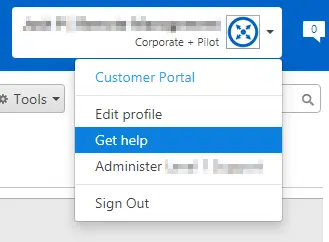
Please ensure you are logged in with your Licensed Account, and you will be taken to the support portal, where you can submit a ticket by clicking on New Support ticket or find the answer to your question in the Knowledge Base.
Support Collector
If you're experiencing a problem with the TeamViewer software, it will also help us if you run our Support Collector tool on your computer first - it will collect the TeamViewer log files and some anonymous diagnostic information about your computer which will help us analyze the problem. You can download it from the following link:
https://download.teamviewer.com/SupportCollector
Once it has finished, it will create a ZIP file. Just attach this file to the ticket when you submit it.