For more information, please see the requirements section.
Access to Frontline Command Center and Downloads
Note: You need to have the desired access and permissions to access Spatial Editor.
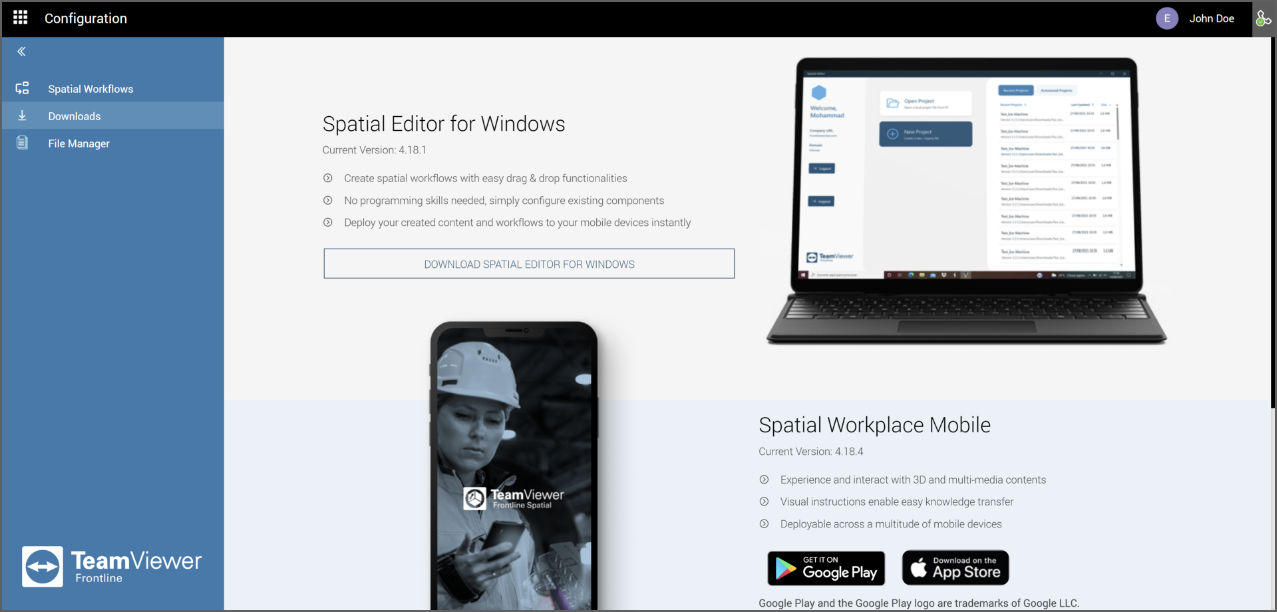
- Login to your Frontline Command Center (FCC) account.
- Click on Spatial Editor under Platform Tools in the navigation panel on the left.
- Go to the Downloads tab.
- Click on Download Spatial Editor for Windows.
- Install the software by following the instructions and then opening it.
- Enter your company URL and domain.
- Click on Sign In With Browser.
Note: When installing Spatial without administrator rights, an error message may appear regarding the inability to create a desktop icon. This message can be ignored without affecting the software's installation.
For more information, please see the login section.
Silent Installation
Use the following command-line instructions to install or uninstall the application without launching the graphical user interface. This method is ideal for IT administrators who deploy the software across multiple machines via scripts.
Uninstallation
Before installing a new version, always uninstall any existing installation to avoid conflicts.
maintenance.exe purge --confirm-command
Installation
Spatial_Editor_X.X.X.X_Offline_Installer.exe install --accept-licenses --confirm-command
Note: Manual download is required. Ensure the correct installer version is copied to the target machine.
Recommended Video Link for this guide: