3D models can be quite large and running them on devices with limited capabilities can be challenging. Spatial Editor offers various display options and an optimization feature to address this issue without compromising any functionalities.
Display options
After loading the model, click on Display to see the following options:
- Render Model as Wires: When activated, the model adopts wireframe mode, displaying only the edges of its faces. This reduces the complexity of the model.
- Enable Back Face Culling: When activated, the back of mesh faces are excluded in the visualization. When the model has been correctly constructed, it will maintain its original appearance while enhancing performance. However, if the model's faces were inaccurately modeled or inverted, it may lead to gaps or holes in the mesh.
- Show CAD Statistics: When activated, the number of parts and triangles of selected parts in the lower left corner will be displayed. This helps the user make decisions according to the computing power of the device that is intended to be used for the particular workflow.

Transformation gizmos
The transformation gizmos allow mouse-controlled translation and rotation of parts and items (e.g., steps. components and markers) inside a 3D scene. It is triggered when selecting one of these elements.

To change the position of an item or part along the selected axis, drag one of the colored arrows with the mouse. To rotate the item or part around one axis, drag the colored circle.
Transformation space
After clicking on the Full Screen button and choosing Transform Gizmo, it is possible to switch the gizmo type:
- Auto: Shows a local gizmo if only one item or part is selected and a global gizmo if more than one is selected.
- Local: The gizmo uses the axes of the selected item or part. If more than one item or part is selected, the gizmo will show the axes of the one being selected first.
- Global: The gizmo uses the axes of the whole scene.
Note: Items can only be selected together with other items and parts can only be selected together with other parts.
The scene's axes are shown in the bottom right corner of the 3D scene.

If the transformation axes (red, green and blue) when selecting objects in the 3D scene are rotated in an unexpected orientation, try to toggle the transformation space to Local or Global in the shortcut menu on the left side of the 3D scene view.
Steps
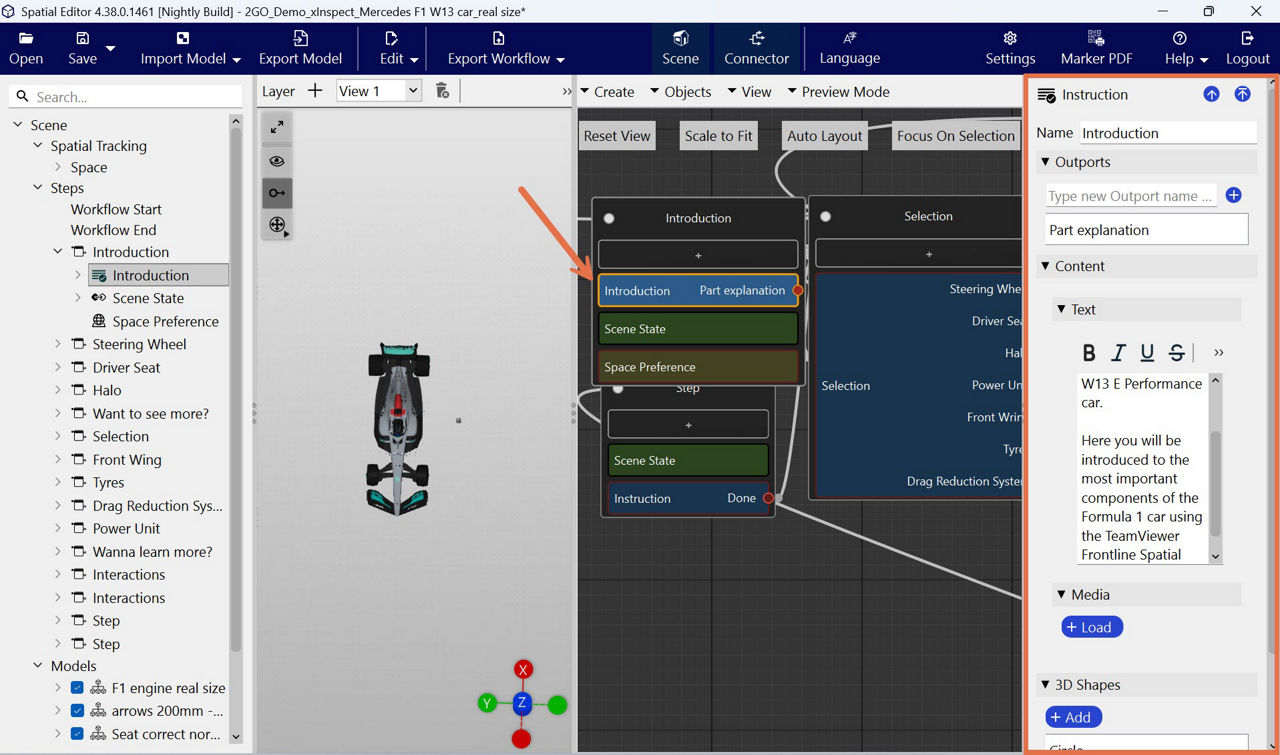
Steps are the modular elements in a workflow. They represent actions, states, or other constructional workflow elements like components, markers, scene states, or condition checks.
Steps are shown with models in Scene Explorer. When you select a step in the Scene Explorer, you can adjust its settings via the settings.
- Search bar: Allows users to search for steps and models
- Scene: Comprises all of the steps and models in a project
- Steps: Refers to workflow elements that can be added by the user
- Models: Refers to 3D models imported to the project
Depending on how the imported model was created, the list might be organized in assemblies. This is particularly useful for selecting multiple parts at once.
Note: All panes in the Workspace can be resized by adjusting the frames around them.
Step settings
You can select all the user-created items of a scene by clicking on Steps (displayed right under Scene).
By separately clicking on each one, the respective settings panel for the respective step appears on the right of the scene. These settings are the same as the ones available when the step is added to the scene: