Tracking determines how and where the 3D content is placed and stabilized in the real world. Once they are properly aligned and anchored in the 3D scene, the models become interactive elements in the workflow.
Spatial Tracking
Using tools such as markers, object trackers, and transformation gizmos, you can accurately position models, link them, and define their behavior. They ensure the content is correctly placed, visually consistent, and responsive in Spatial Workplace. Depending on your scenario, you can choose from different tracking methods in Spatial Editor.

Let’s take a deeper look at these trackers that allows you to integrate models into workflows:
- Marker Tracker
- Object Tracker
- Surface Tracker
Marker Tracker
A marker is used to position information that is to be displayed within a workflow at the desired spot over the real-life component. For this, at least one virtual marker needs to be added in the editor where the real-life marker will be in relation to the real-life component. Different devices use different types of markers. The virtual model is then loaded in Spatial Workplace according to the scanned position of the marker.
We currently support only one type of marker:
Marker Trackers are to be used with mobile devices (iOS and Android). The size of the marker can be adjusted by the user and can be between 1 and 99 cm. As a rule of thumb, markers with a size of 10 cm (12 cm with borders) or 15 cm (18 cm with borders) should be used, but the user can select the size that best suits the component.
To add a marker tracker to your model:
- Click on Spatial Tracking at the top.
- Choose Marker Tracker.
- Click the model's surface where you want to place it. The other editor options/buttons are disabled until you place the marker.
- To change the position of the marker on the model's surface, select it and click on Object > Snap in the top menu or press S on the keyboard.
- Change the position and rotation of markers independent of the model's surface by using the transformation gizmos or the Transform menu on the right.
On the right side, you can edit the marker's reference (ID and size):

The virtual marker used in the editor must match the real-life marker applied to the real-life component when using Spatial Workplace, so ensure the marker ID matches. It is important to print the correct marker and place it in the same position both virtually in the editor and on the real-life component.
The marker can be downloaded by clicking on Marker PDF in the top menu.
Object Tracker
When using object trackers, the real-life object is used to calculate the position of the information that is to be displayed within a workflow at the desired spot. Object trackers can be used in workflows that will be viewed on iOS and Android devices.
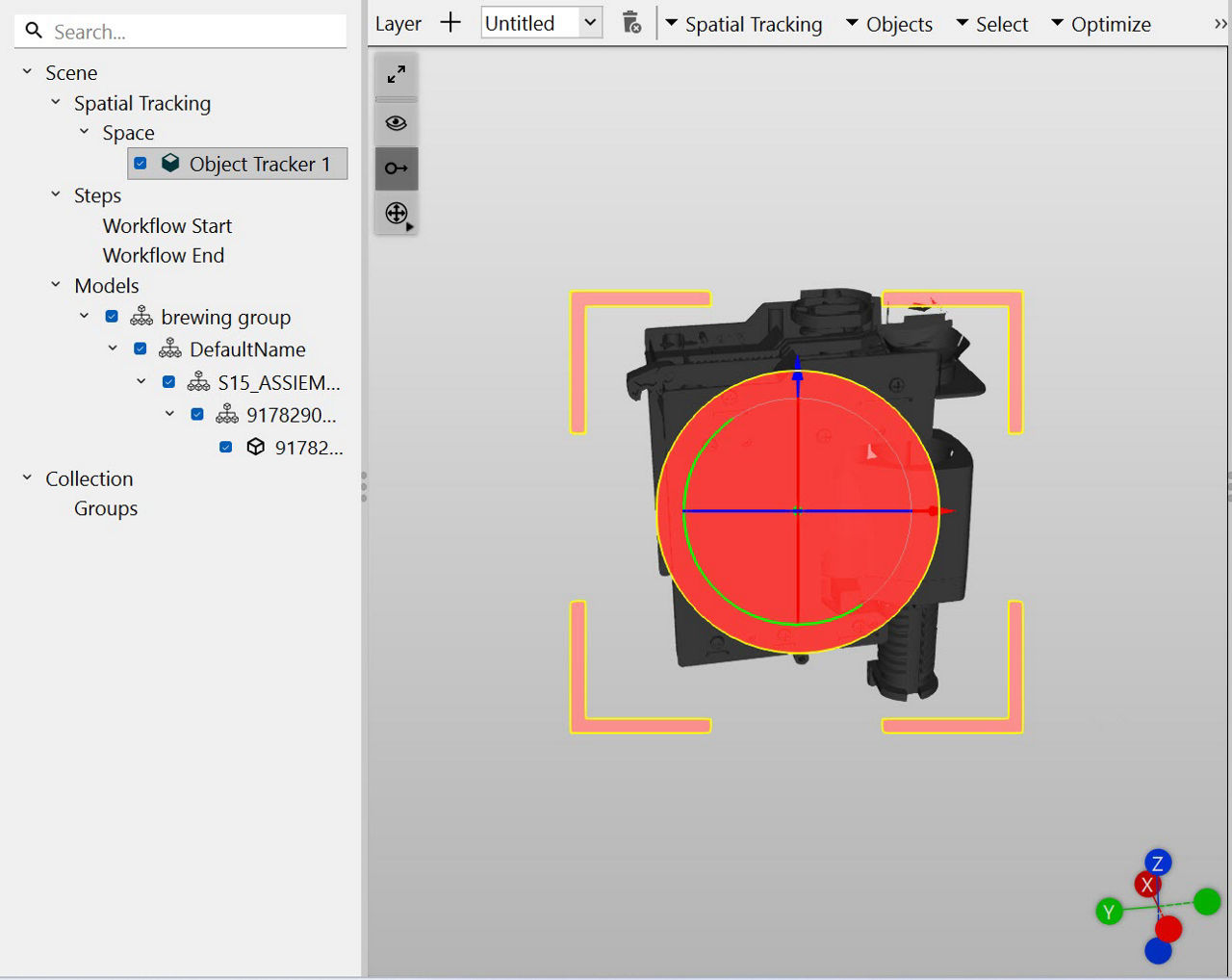
To add an object tracker to your model:
- Click on Spatial Tracking > Object Tracker in the menu at the top of the 3D scene.
- You will see a red hologram of smart glasses (you need to zoom out using the scroll wheel on your mouse). This hologram shows how the object will be perceived through smart glasses.
- The object tracker's position relative to the model in the scene indicates the position and distance the user must place their device to scan the real object while playing the workflow in Spatial Workplace.
- Add the object tracker. It is now automatically positioned to match the 3D scene camera (i.e., the perspective from which the user is currently viewing the model in the 3D scene).
- Using the mouse, the user can rotate the scene to see it better from different perspectives. Use the gizmo over the object tracker to refine its positions or move the camera.
- Optional: Click on Set Transform From View in the menu on the right to move it again to your viewing perspective.
- After assigning a model to the tracker, press Enter to confirm or Escape to cancel.
- Confirm by clicking on Generate.
⇒ Now, the hologram of the Object Tracker in the 3D scene should change its color to green.
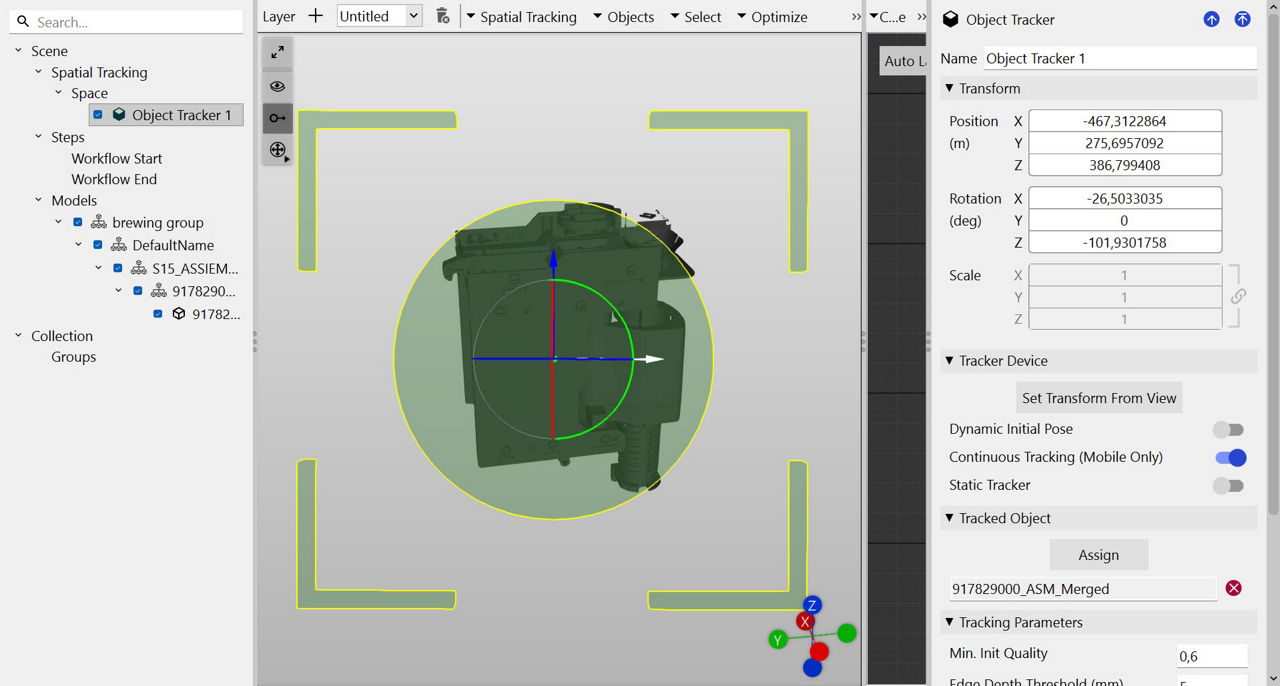
Note: It is important that the object tracker is at a reasonable distance from the model and that the line emanating from it points to the model.
⇒ After uploading your workflow, test the scanning perspective and the distance on a viewing device and fine-tune it in the Editor. With this, the final user will have a better scanning experience.
Note: The red color of the smart glasses' hologram indicates that no .obj file is attached. The .obj file helps VisionLib track the real-life component.
7. To create a .obj file from the scene, select the red hologram.
8. Go to Settings on the right.
9. Click on Assign > Generate new from scene under Tracked Object.
10. Optional: The user can also save the .obj file on their computer by clicking on Export and saving the file.
Note: Independent of the model format imported into Spatial Editor, an .obj file needs to be generated from the scene or provided from disk.
11. Optional: If parts are hidden or moved from the model in Spatial, the .obj file needs to be regenerated to include these changes in your workflow. To adjust the initial tracking position and rotation when using the Workplace app, enable the Dynamic Initial Pose option.
12. Change the position and rotation of the object tracker using the menu on the right.
13. Finally, you can change the values of the tracking parameters (explained below) to improve tracking for a specific object.
Note: One of these parameters is the Static Scene, which the user can disable if the scene they are working with is dynamic. This feature is currently available only on mobile devices.
The default values are general parameters chosen to work well with most objects.
Here's a list of all available tracking parameters:
- Dynamic Initial Pose: When enabled, the user can dynamically set the initial tracking viewpoint during runtime.
- Continuous Tracking (Mobile Only): If enabled (default), the object tracker will provide continuous tracking on mobile devices. It is more suitable for objects that can be moved or rotated during the task while maintaining their form. Non-continuous tracking only tracks the object at the start of the task and then continues the tracking using SLAM. Non-continuous tracking is more suitable for objects that are not moved or rotated during the task and that change their form (e.g., parts are added or removed).
- Min. Init Quality: Threshold for validating tracking during initialisation. The value range reaches from 0.5 to 0.9, with 0.6 being the default value. Higher values are recommended if the line model matches the real-life object perfectly with no occlusion. However, usually they will not match perfectly, which is why a lower value works better.
- Edge Depth Threshold (mm): Defines the threshold for generating the line-model. The value range is [0.0001, 1000] and the default value is 1000. Specifies the minimum normal difference between two neighbouring pixels necessary to be recognised as an edge. Usually, it is set to a high value because normal-based lines can’t be recognised very reliably. However, for certain models, it might make sense to use a lower value.
- Normal Threshold: Threshold for generating the line model. The value range reaches from 0.0001 to 1000, with 1000 being the default value. This specifies the minimum normal difference between two neighbouring pixels necessary to be recognised as an edge. Usually, it is set to a high value because normal-based lines can't be reliably recognised. Though, for certain models, it might make sense to use a lower value.
- Edge Contrast Threshold: Defines the threshold for edge candidates in the image. The value range is [0.256], with the default value being 40. High values will only consider pixels with high contrast as candidates, while low values will also consider other pixels. If there are not enough candidates, the line model might not stick to the object in the image.
- Snapshot Distance (mm): Minimum distance between keyframes (mm). The value range reaches from 0.001 to 100000, with 100 being the default value. The line model is only generated for certain keyframes. Higher values improve performance but come at the expense of lower precision (and vice versa).
- Line Search Length Init Relative: Length of the orthogonal search lines (in per cent) relative to the minimum resolution during initialisation and tracking. The value range reaches from 0.00625 to 1, with 0.03125 being the default value. The model-based tracker projects the 3D line model into the camera image and searches for edge pixels orthogonal to the projected lines.
- Use Colour Edges: Disabled by default. When enabled, coloured edges are more easily distinguished while tracking. It is only useful for objects with colored edges. It can increase the tracking quality but requires more processing power.
- Laplace Threshold: Threshold for creating the line model (mm). The value range reaches from 0.0001 to 100000, with 5 being the default value. This specifies the minimum depth between two neighbouring pixels to be recognised as an edge.
- Line Gradient Threshold: Threshold for edge candidates in the image. The value range reaches from 0 to 256, with 40 being the default value. High values will only consider pixels with high contrast as candidates while low values will also consider other pixels. This is a trade-off. If there are too many candidates, the algorithm might choose the wrong pixels. If there are not enough candidates, the line model might not stick to the object in the image.
Note: Object tracking must be enabled in TeamViewer. Extra licensing per model or per device is required (with the VisionLib external supplier).
Surface tracker uses the user position when Spatial Workplace was started to position all models and instruction components connected to the spatial reference. It can be used in workflows that will be viewed on iOS and Android devices.
Important to note that, currently, in the Spatial Editor, mixing different types of spatial references in a workflow is not supported. To add a new spatial reference type, please remove the existing spatial reference that is different than the one you are planning to add.
To add a surface tracker:
1. Click on Spatial Tracking > Surface Tracker at the top of the 3D scene. The gizmos allow movements only along the green and red axes and rotation around the blue axis. This restriction is meant to keep the model placement reference on the same plane.

2. The green arrow symbolizes the view direction of the user. The user can choose which models are positioned according to this reference in the menu on the right. When starting the workflow in Spatial Workplace, the selected models and connected instruction components will be positioned in relation to the viewing direction of the user when they start the Spatial Workplace app.