Sign in Page
For more information, please see the installation section.
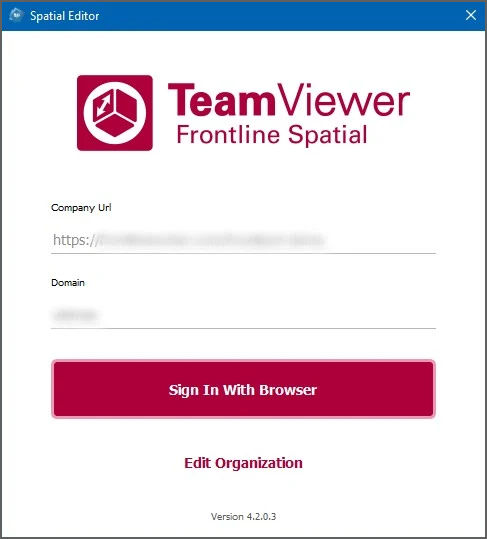
Signing in to the application
- Enter your company URL and domain.
- Click on Sign In With Browser.
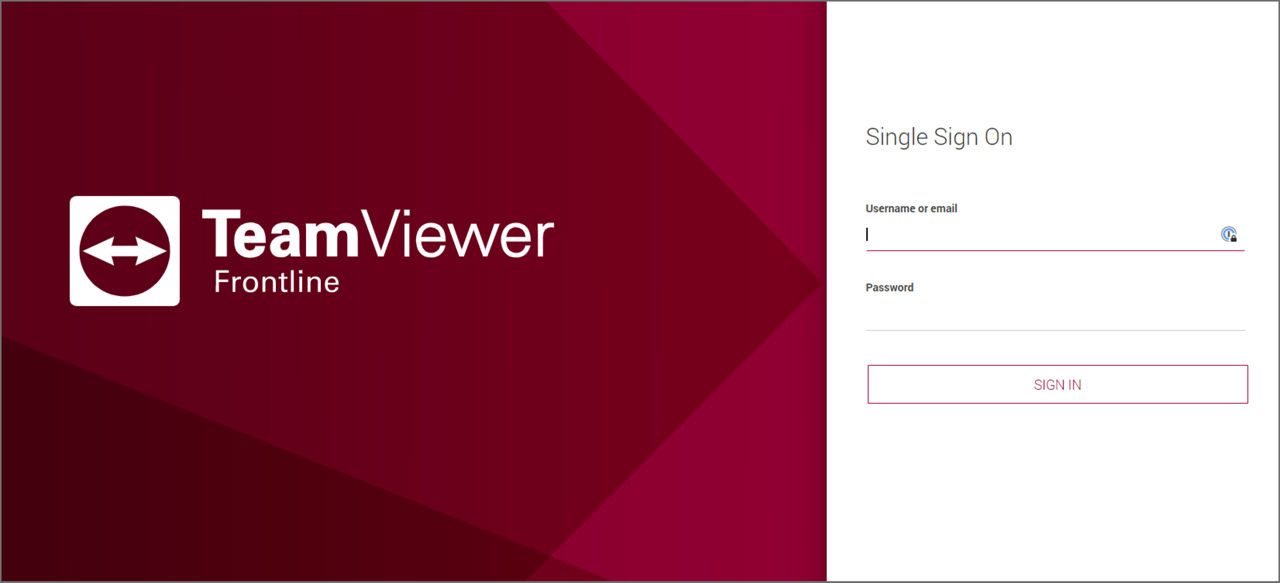
3. Enter your credentials on the single sign-on page.
Home Screen
The Home Screen gives you quick access to create a new project and access the recent projects.
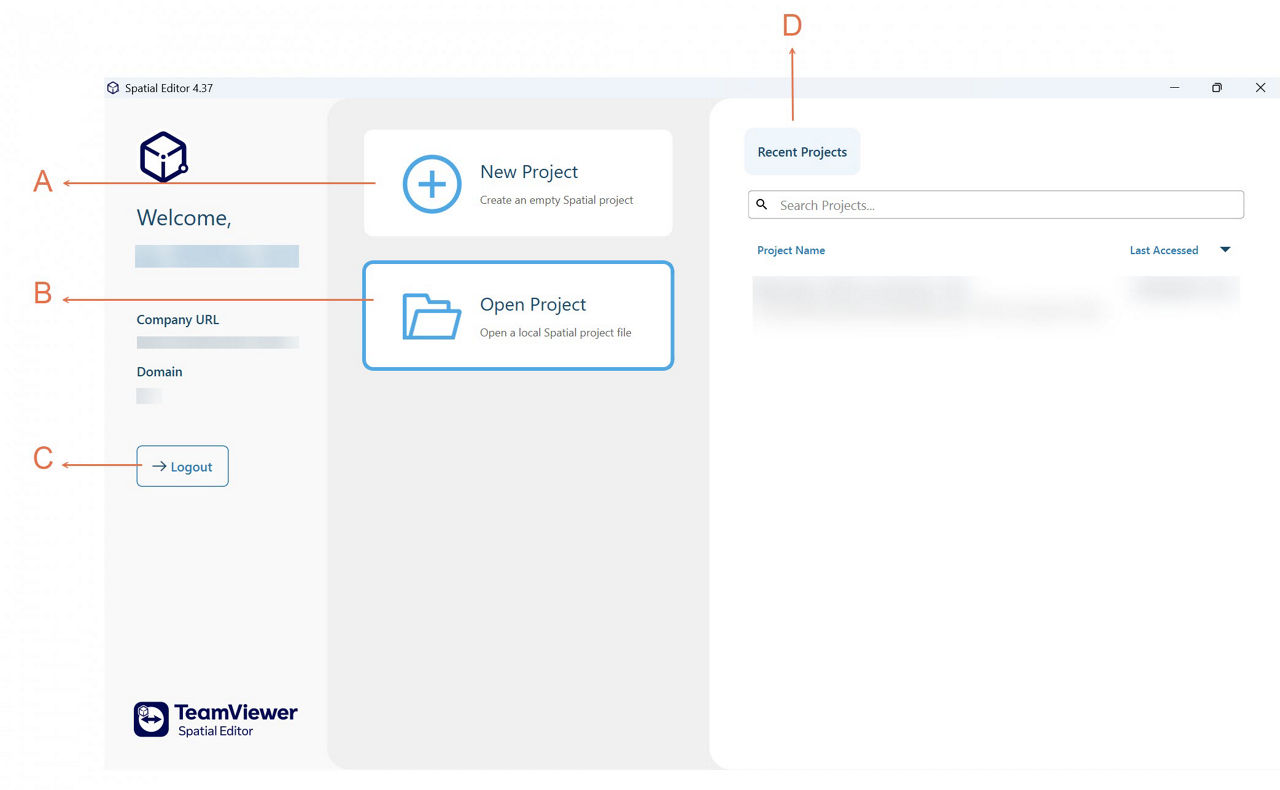
The Home Screen in Spatial Editor gives the following options:
A. New Project: Create an empty Spatial project and lead to an empty Workspace.
B. Open Project: Open a local Spatial project file.
C. Logout: Logout from your account.
D. Recent Projects: List all the Spatial projects you have recently accessed.
Opening a local file
- To open .v3pproj files already existing on your computer, click on Open Project.
- You can also download .v3pproj files from Spatial Workflow Management.
- If it is a project that has already been opened in Spatial Editor, it will be listed on the Recent Projects tab of the subsequently shown menu and can be opened with a click.
Opening an existing project
- Click on Recent Projects.
- In case you are already working on a project and want to open another one, just click on the Open option in the top left corner of your window.
- You are redirected to the home screen where you can open another project or create a new one.