Conversion instructions for Spatial Editor 4.38 (and earlier) to 4.39
This manual describes how legacy workflows (Version ≤ 4.38) are converted when they are opened in newer versions of the Spatial Editor. It outlines the conversion procedure, explains the updated workflow building blocks (Steps, Components, and Spaces), and details how elements from older workflows are mapped to their corresponding structures in the new system.
First, we will introduce some items from the glossary to clarify terms between the legacy and the new Editors.
Spatial Editor Glossary
- Legacy Editor: The 4.38 and below Spatial Editor versions.
- New Editor: The 4.39 and higher Spatial Editor versions.
- Step: The primary unit of a workflow in the New Editor; it contains one or more components.
- Instruction component: A component that represents an instruction (converted from a Pin).
- Outport: A named connection leaving a component (converted from node connections).
- Workflow state: A component that changes model visibility and properties at the workflow level (converted from Scene States).
- Step State: A component for step‑scoped state and instanced targets that are used for hologram conversion.
- Space/Anchors: A container for spatial references (markers, trackers, placements) used by a workflow.
- LOG: A conversion warning indicating that the behavior was trimmed, mirrored, or best‑effort due to unsupported legacy patterns.
When a legacy workflow is opened, newer editor versions (4.39 and higher) automatically detect that the workflow uses a legacy format. In this case, a conversion confirmation dialog is displayed.
The workflow is converted only after the user explicitly confirms the conversion:

After the conversion is complete, if any parts of the workflow cannot be mapped in one‑to‑one correspondence, the editor displays a conversion summary panel. This panel lists all affected Steps and elements and remains available for review, allowing users to verify the converted workflow. The conversion process always aims to preserve the original execution flow.
When legacy behavior is not fully compatible with the New Editor's behavior, the system applies the best‑effort conversion and reports the issue as a warning.
In these cases, the dialog lists the names of the affected Steps:

Note: While converting the Workflow, there will be a backup saved on your local device under the folder name:

In legacy workflows, multiple nodes could be active simultaneously. Pins, Scene States, and spatial nodes often overlapped in their responsibilities, making workflows difficult to read, edit, and preview.
In the new system, the Steps provide a single container that represents one moment in the workflow. All elements that occur simultaneously. The Instruction, Timer, Quiz, Menu, Barcode, Workflow State, and Step State components are grouped into a single Step. All these components are explained in detail below, and in the Adding content to your workflow section.
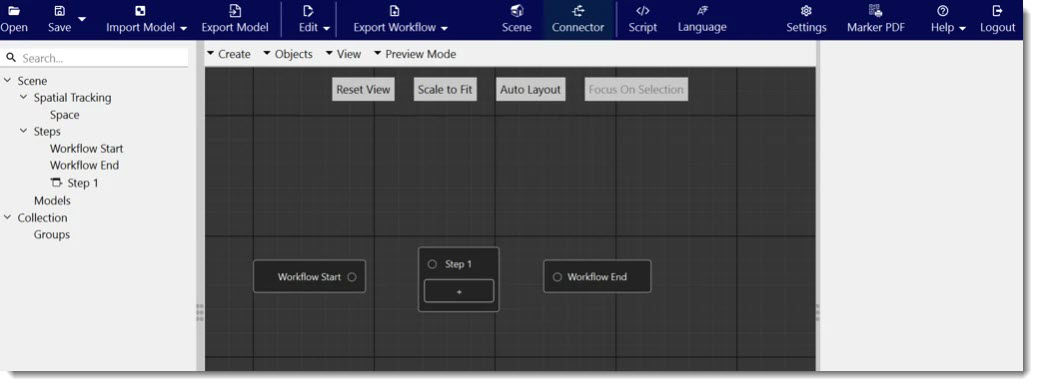
Components are modular building blocks that provide specific behaviours within the Frontline experience. Each Component is a self‑contained capability, for example, capturing input, displaying information, or triggering actions can be arranged in sequence to build complete workflows.
Here are all the components that can be added to a Step:

To add Components:
- Click Create in the Connector view.
- Select Step.
- Click the Plus icon to open the list of available Component options.
Timer
Defines the output behaviour from a step that will execute after a specific time has passed. For example, for 10 seconds, as shown below.

Auto Connection to Timer component
In the newer version of the editor, auto connections no longer exist as a connection type. The auto-advance behavior is represented explicitly using a Timer component.
1. Manual navigation (Buttons/outports): Manual connections remain as outports on the component (for example, Instruction buttons, Menu buttons, Barcode outputs. These outputs connect to the next Step.
2. Auto‑advance (Timer component): If the legacy workflow had an Auto connection (timeout), the converter adds a Timer component to represent that behaviour:
- The Timer is placed in the same Step as the component that previously had the Auto connection (most commonly the Instruction Step that is converted from a Pin).
- A Timer has exactly one out-connection to a single next Step.
- If multiple auto connections existed in the older generation from the same node, only one can be represented. The converter keeps the shortest/first and trims the rest (LOG).
- Timeout values are converted from milliseconds to seconds (rounded as needed).
- If an auto-connection with 0ms existed coming out of a Pin, the converter creates a Timer of 1s to preserve auto‑advance intent.
Note: The Quiz, Menu, and Barcode components do not support outgoing auto-connections. If the legacy workflow contains such a pattern, it is converted using best‑effort rules and flagged with a log.
Quiz
Defines the True or False output behaviour for the question configured in the navigation pane. To test certain skills of a worker on a machine, for example, the user can place quiz components in the model that contain single-answer or multiple-choice questions. Using the right panel options of the quiz component, the user can:
- Define the quiz component’s name (only relevant inside the editor)
- Define a question
- Define whether it is a single-answer or multiple-choice question
- Add the correct and incorrect answer(s)
- Define if this question is offered for self-study
- If it is offered for self-study, define how many attempts the user has to answer the question
- Decide on the feedback the user receives when answering the question
The Quiz component name identifies it in the Spatial Editor. However, in the Spatial Workplace, only the question will be displayed.
Single-answer and multiple-choice questions:
This setting defines how many correct answers must be selected before the question is considered answered correctly. If a single is selected, the user needs to choose only one correct answer, even if the question has more than one correct answer. If multiple is selected, the user needs to select all the correct answers for the response to be considered correct. Once the correct answer or answers have been selected, the user receives positive feedback - if defined for this question - and the step that connects to the True outport of the quiz will be activated. Likewise, for incorrect answer(s), the step connected to the false output will be activated.
Answers: Any number of possible answers can be added to a question by
1. Clicking on the Add Item button under Answers.
2. Tick the checkbox next to all the correct answers for the question.
Feedback:
It is possible to give immediate feedback to the user about whether the question was answered correctly or incorrectly. Tick the checkboxes for positive/negative feedback and enter the respective feedback message to be shown. Positive feedback will be displayed when the correct answer(s) have been selected. Negative feedback will be displayed when the user answers incorrectly. The maximum number of attempts to answer a question incorrectly before negative feedback appears depends on the question's setting.
It is important to note that without feedback, the user will not know whether they answered the question correctly or not.
Instruction
This component replaces the bulk of the pin functionality. It allows the user to add text, media files, shapes, and lines under its Content tab. Adding more values to the Outports tab allows the user to have more connections from this instruction to other steps:

Menu
Just like the Instruction, this component can also have multiple connections to different steps. The main difference from the instruction component is that the Menu has only a description and outputs, and will be displayed as a pop-up menu (as the name suggests) in the middle of the screen, rather than in the bottom/side bar used for instructions.

Checkpoint
Checkpoints make steps repeatable and give users the flexibility to return to a specific step in the workflow at any time. When a Checkpoint is added to a step, that step becomes revisitable, even if the user has already passed it.
Checkpoints can be used on steps that contain any component type.

Space Preference
Space preferences currently support assigning a Preferred Tracker. After clicking on Assign Tracker, the user can select between a Marker, Object, or Model Placement tracking anchor. This is relevant only for AR, and allows the author to “suggest” a preferred tracker. When a step with a preferred tracker is activated -if in AR- the user will be prompted to track that anchor (if it is not set already).

Barcode
This component allows scanning inside the steps. There can be only one barcode-scanning component per step, and it is exclusive to the instruction, quiz, or menu component. When a barcode value is scanned that corresponds to the value of one of the predefined outports, the corresponding step is activated.

The camera position keeps persisting for the following steps until there is another user defining this component.
Step State
A step state allows the user to modify a set of 3d targets. The changes will only be active while that specific step is active. Moving forward or backward from that step automatically reverts any state changes. The step-state containers allow the user to group animations for specific targets. It is possible to modify one container’s targets or all containers together, and to add the part itself once as a target. With this, the animation will only appear during that step. Then, you can add multiple instances of that part across different target containers.

Workflow State
Similar to the Step State, but changes are persistent across future steps, unless reverted or overridden. Each target part can only be part of one single target container.

Viewpoint
The Viewpoint component lets Workflow Authors save a precise camera position and orientation for each step in the Spatial Editor. When the Frontline Worker opens that step in Spatial Workplace, the camera automatically moves to the stored viewpoint, giving clear spatial orientation.

A Viewpoint defines how the user initially sees the step. Authors can capture the current viewport at any time, and the system records both the camera position (X, Y, Z) and the camera rotation (orientation). This ensures that each step opens with a consistent, intentional perspective that guides the user naturally through the workflow.
Viewpoint is stored as part of the step's data and can be updated or removed at any time.
Each Viewpoint allows configuration of how the camera moves when the step is opened. This is controlled via the Camera movement dropdown in the Inspector. It is also possible to adjust the camera position in the 3D scene by manipulating the camera 3D-icon gizmo.
Here are the camera movement options and their definitions to configure camera movements:
Smooth
Smooth is the default option for the camera movement. It allows the camera to perform a smooth fly-through transition from its current position to the saved viewpoint. The movement is animated rather than an immediate switch.
This option is intended for orientation and for building spatial context.
Instant
The Instant movement option allows the camera to snap immediately to the saved Viewpoint with no animation.
This option is intended for repetitive steps, precision-focused tasks and scenarios where animation would slow down the execution.

The camera position keeps persisting for the following steps until there is another user defining this component.
Container Animation
On this Inspection it shows, the visibility and the color of the container.
There are two ways to Animate Containers:
1. Containers can be animated together by clicking on Animate on the first Inspector Screen.

2. Click on the Individual Container to animate. This will open the container's Inspector screen.
Scene State nodes are replaced by Workflow State and Step State Components. Step State applies changes that are valid only while the Step is active. When the Step ends, these changes are automatically reverted.
Workflow State applies changes that persist across multiple Steps until they are explicitly reverted by another Workflow State.
When both states are added to the same Step, the Step State overrides the Workflow State changes for the duration of that Step. After the Step finishes, the Workflow State changes continue to persist.
Pins are converted into Steps that contain a single Instruction Component. The Instruction Component holds the instructional content, including text, rich formatting, media, shapes, and lines.
Instruction Components are no longer positioned directly in 3D space. To preserve spatial context in converted workflows, the converter creates a visual shape at the original Pin position and associates it with the Instruction.

The former 3D Pin shape no longer exists in the New Editor.
During conversion, the Pin is currently represented using a simple circle marker at the original location.
The former 3D Pin shape no longer exists in the New Editor.
During conversion, the Pin is currently represented using a simple circle marker at the original location.
1. Holograms are converted into a Step State within the same Step that contains the Instruction Component created from the original Pin.
2. Hologram targets become Step State targets, each placed in a separate container. Separate containers are required because each target can have its own color and related properties.
3. Hologram color is transferred to the container target color (including alpha), using the same default alpha value used for holograms.
4. Hologram style is mapped to a visibility modifier:
- Static → Show Pulsing → Pulse
5. Hologram animation keyframes are transferred without modification to the animation of the Step State targets.
6. Hologram transform is mapped to the Step State container transform. Animation keyframes may override this base transform.
Edge cases:
If a hologram was duplicated in the legacy editor and multiple copies existed in the same Pin with separate animations, each copy is converted into a separate model in its own container within the same Step State.
Models that were previously displayed as holograms may not appear with the same level of transparency in the New Editor.
All spatial references in a workflow are added to a single Space (e.g., Space1). Their parameters, transforms, and properties are preserved.
- Spatial reference nodes are removed from the workflow logic. The nodes before and after they are reconnected use the same connection label as before.
- If multiple Model Placement nodes existed, only the first may be kept; additional ones can be dropped and reported (LOG).
- QR code markers are removed (legacy behaviour), and the user is informed during the conversion.
After Spatial References are extracted to Spatial Tracker, the former Spatial Reference node is converted to a step with Space Preference Component, with the extracted Spatial Tracker selected as the preferred tracker. If the legacy Spatial Reference has an auto‑connection value greater than zero, a Timer component is also created on the same step.
Let's visualize these with the following transformations:
- The change is shown below, from left to right where the model placement becomes the preferred tracker inside the space reference:

2. The following left connection should become the following right, where the in-port of trackable is connected to in-port of its following steps.

3. The following left connection should become the following right, where the in-port of trackable is connected to in-port of the following steps:

The back button behaviour:
Only incoming connections to Pins/Quiz Pins/Menus/Barcodes influence the resulting Step's Back button setting:
- If all incoming connections had Back enabled --> the Step has Back-enabled.
- If any incoming connection had Back disabled --> the Step has Back-disabled.
Back button flags on connections arriving to Scene States are ignored.
Therefore, the left configuration (legacy) is currently looking like the right configuration (new):

The Inspector transition has been like the following from the legacy Editor to the new:

A Checkpoint is a step-level behaviour in the new workflows that allows a Workplace user to return to a previously visited step during a task run.
A step with Checkpoint = ON becomes a valid return point after it has been visited once. From any later step, the user can navigate back to that checkpoint and continue the workflow from there, with the workflow state restored to how it was at that moment.
Important to note that this behaviour is independent of the components inside the step.
The importance of Checkpoints:
In older generation workflows, Menu nodes are combined with two responsibilities:
- Showing multiple outgoing connections (navigation UI).
- Allowing users to revisit the menu after it was visited once.
In the newer version, these responsibilities are intentionally split:
- Menu component controls how the choices are displayed.
- Checkpoint controls whether a step can be revisited or not.
1. Visiting a checkpoint
- A step only becomes a valid checkpoint after the user has visited it.
- Steps with Checkpoint = OFF can never be revisited.
2. Returning to checkpoints
- From the current step, the user can return to any previously visited step that has Checkpoint = ON.
- When returning, the workflow state is restored to the moment that checkpoint was reached.
3. Checkpoint history is linear
- If a user goes back to an earlier checkpoint, any checkpoints that were visited after that step are discarded.
- Only checkpoints in the current active path remain valid.
What Checkpoints are not meant for?
- Checkpoints do not allow users to jump to all previously visited checkpoints across the entire task run.
- Checkpoints do not support revisiting steps that are no longer part of the current active path.
- The legacy behaviour, where any previously visited menu could always be revisited, is intentionally not supported in New Editor.
Legacy and the New Editor validate workflows differently.
After conversion, you may see new validation errors or warnings even if the legacy workflow is exported successfully.
Quiz conversion note: Legacy Editor allowed only True or False connection in some cases. After conversion, the new Spatial Editor requires both. The converter mirrors the existing connection’s target to create the missing out-connection and records a LOG warning.
Workflow state conversion: The legacy Editor allowed multiple visible modifiers in a Scene State Node to reference the same model target(s). Workflow State Components do not permit Scene Target Containers with duplicated model target(s).
During conversion, if a visible modifier referenced a model that already exists in the Scene Target Container(s), the existing entry is removed and replaced by the newly converted one. This guarantees that each model appears at most once in the Workflow State Component.
Some of the Legacy Editor patterns cannot be represented exactly in the New Editor. In these cases, the converter applies the best-effort mapping and emits a warning tagged as LOG.
These warnings do not block conversion but should be reviewed after migration to understand any behaviour changes or limitations.
Behavioural limitations:
- LOG: Multiple Auto connections from one node → only one timer supported (keeps shortest/first; trims others).
- LOG: Quiz with multiple True/False connections → keeps the first; trims the rest.
- LOG:Outport name/value too long (>30 chars) → trimmed to 30 chars.
- LOG: Duplicate outport names after conversion (e.g., tab‑merged pins) → renamed/trimmed to satisfy validation.
- LOG: Compression ending at workflow end → creates a Step with Workflow State + Timer 1s and flags a warning.
Unsupported legacy constructs:
- LOG: Legacy Scene State – Reset Modifier → convert to a Workflow State Component without adding Scene Model Container.
- LOG: Hologram using legacy v3d format → convert to a Step State Component without adding Scene Model Container
To enable scripting:
- Go to Settings.
- Enable Scripting.

Here, you can access the documentation:
