Workflows define a step-by-step procedure that can guide Frontline users through their tasks. It is possible to create and work with both workflows in Spatial Editor.
- 2D Workflows are built with instructions, such as text, images, videos, audio, and PDFs. Each step can include these instructions. Components such as the menu or the instructions can also be added.
- 3D workflows can be created in Spatial Editor by arranging the 3D models and other spatial references, such as models, shapes, and lines, and by defining their sequence.
Workflow files contain the components of a workflow, which are essentially a set of steps and components that convey information about a model part, e.g., a machine. Additionally, at least one marker (or other spatial references) is added to the workflow to enable the correct positioning of the instruction components or steps over the real component.
Note: A workflow does not keep information about the reference CAD model itself (so the project settings are stored within the workflow).
Exporting a workflow
Spatial Editor supports two export targets for workflows, depending on how they are intended to be deployed and managed.
- Export to FCC (Frontline Command Center): This option publishes the workflow to the Frontline Command Center and can be scheduled or repeated as needed. Once the workflow is imported, the workflow can be used to create templates and tasks. Tasks can be assigned to users or groups, which is helpful for centrally managed, repetitive processes.
Note: A workflow does not keep information about the reference CAD model itself (so no context and project settings are stored within a workflow).
To export workflow files:
- Once the user is done editing the project in Spatial Editor, they can click on Export Workflow > Export Workflow to FCC in the top menu to upload it to FCC, where they can manage it.
- A window will pop up to manage the workflow. Here, you should decide which solution you would like this template in: Inspect or Make.
You should give a title to your template and write a short description of the upload reason:

3. Spatial Editor automatically creates a template from this workflow and assigns it to the currently signed-in user while uploading it to Frontline Command Center. This way, the template will already be available on the user's device when the upload completes.
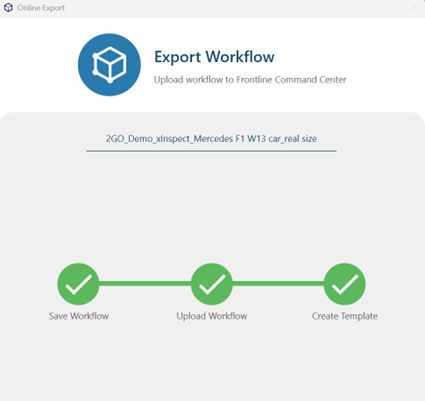
Updating the workflow (mandatory)
Frontline 4.39 requires users to reupload their workflows to remain compatible. Before following the steps to do that, please make sure that your local files are ready and that Spatial Editor is on version 4.39:
- Create a backup of the project file (recommended).
- Locate your project in your Windows File Explorer and open your project in Spatial Editor (v4.39).
- Save it with a new name (e.g., editor_project1_BACKUP.v3pproj).
- Update Spatial Editor to the latest version.
- Open the original project file, the one that has not been backed up (e.g., editor-project1.v3pproj) in Spatial Editor (v4.39).
- Wait until fully opened and then Export to FCC.
How to assign the workflow
In Spatial Workplace, all assignments happen based on user accounts. A task or template is assigned to a user via FCC, making it available for the user to view on any device after they sign in to Spatial Workplace. For more information on assigning previously created templates to other users and managing them further, please see the Templates section of our Make/Inspect solution guide.
Supported workflow languages
Workflow Language is the language that appears in the Editor UI, in the inspector component, and in the connections for a particular workflow. It appears everywhere there is a string in the workflow in the Spatial Editor. This is the default language for all tasks originating from this workflow.
Users can extract all the strings in a workflow into a CSV file and have them translated by an external translator or translate the strings themselves in the CSV file outside Spatial Editor. This will allow the same workflow to be reused across different locations.
The current additional workflow languages are German, English, Spanish, French, Portuguese, Simplified Chinese, Japanese, and Korean.
To translate the present strings in a workflow:
- Select Language from the toolbar.
- Click on Add to choose the additional language you want the workflow to be translated into.
- Click on Export CSV.
To display the CSV file correctly, the user should uncheck the Use system separators option in Excel (File -> Options -> Advanced). The user should then configure the default Decimal Separator as a comma (,) and the Thousands Separator as a period (.).
It is important to note that while the workflow is running in Spatial Workplace, the application will continue the task in the preferred app language, if available in the task. If it is not available, it will run the task in the Workflow Language.
Note: The added translations are also exported with the workflow and can be reused.