Remote script execution can significantly simplify device administration and maintenance tasks. This feature allows you to execute scripts on remote devices without initiating a TeamViewer remote session.
This article applies to all TeamViewer Monitoring Customers.
Remote Script execution offers many benefits:
- Efficiency
Remote script execution streamlines administrative tasks by allowing scripts to run directly on remote machines without establishing a remote desktop or command-line session. This significantly reduces setup time, eliminates unnecessary steps, and accelerates IT operations, freeing up valuable time for other critical tasks. - Minimized disruptions
Running scripts discreetly in the background ensures minimal interference with users' daily activities. This is particularly important in environments where constant uptime is essential, such as customer service centers or production environments. Users can continue their work uninterrupted while IT teams handle maintenance, updates, or diagnostics. - Bulk actions
One of the most powerful advantages of remote script execution is the ability to perform actions simultaneously across multiple devices. Whether deploying software updates, configuring system settings, or running compliance checks, IT administrators can efficiently manage hundreds or even thousands of endpoints simultaneously, saving time and reducing repetitive tasks. - Rapid issue resolution
When issues arise, immediate intervention is often crucial. Remote script execution enables administrators to run diagnostic or repair scripts quickly without physically accessing devices or waiting for user input. This results in faster problem resolution, improved system stability, and enhanced user satisfaction. - Enhanced security
Limiting access to script execution rather than establishing full remote sessions minimizes potential vulnerabilities. Organizations can better protect sensitive data and maintain stricter access controls by reducing exposure to open remote connections. Additionally, executing predefined scripts with limited permissions lowers the risk of accidental or unauthorized changes. - Flexibility
With remote script execution, administrators can manage systems virtually anywhere, whether working from home, in the office, or on the go. Compatibility across various platforms and operating systems ensures that organizations can maintain a consistent approach to system management regardless of their technological landscape. This capability promotes seamless IT operations and enhances productivity.
Hint: If you haven't created any script yet, please read our dedicated article here:
Requirements
The following requirement must be met to execute scripts on the device:
-
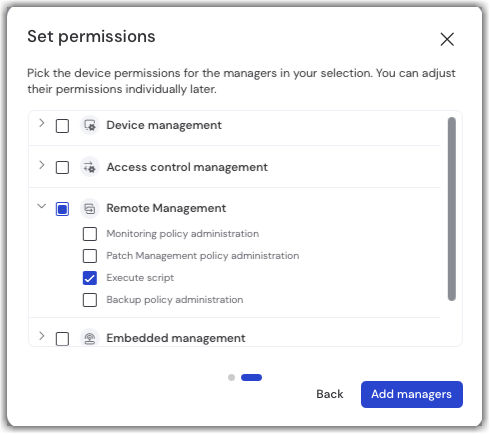
User must be a manager of the device and must have execute script permission. Learn more about how to assign managers to a device and how to edit manager permissions on devices.
How to execute scripts remotely
There are three methods for remotely execute scripts: in-session script execution, bulk script execution, and individual script execution.
Note: Linux and macOS-compatible scripts are only available for in-session script execution and individual script execution.
In-session Script Execution
Learn more about in-session script execution for TeamViewer Classic and for TeamViewer Remote.
Bulk Script Execution
Note: Bulk script execution only supports scripts compatible with Windows.
-
Go to the Automation & insights menu.
-
Navigate to Script Execution and select the script to be executed remotely.
-
Click the </> Execute a script button in the center of the page.
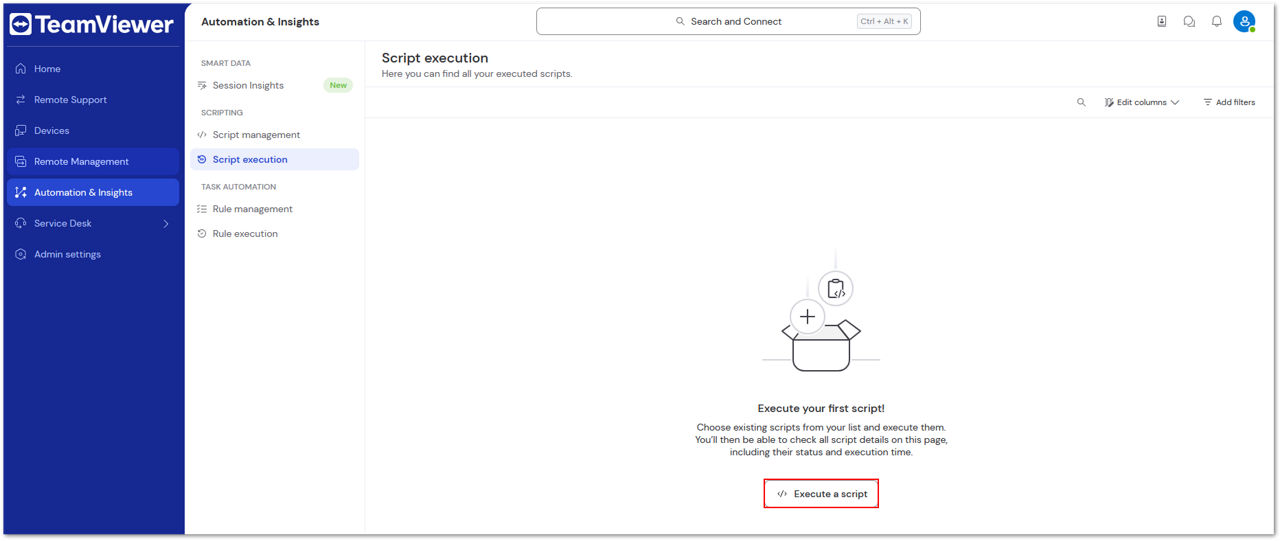
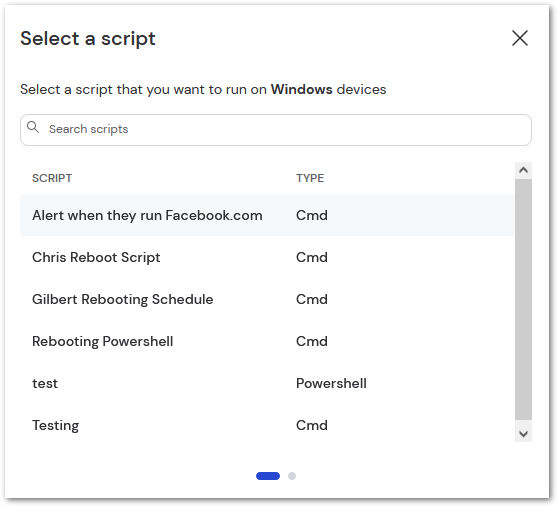
4. Select the desired script by clicking on the script name.
5. Select the remote devices where TeamViewer should execute the script, and click Next.
Note: Remote devices require the "Execute script" manager permission to be enabled.
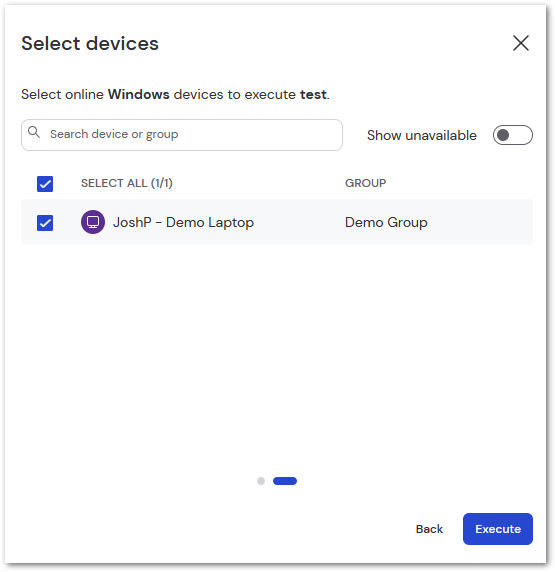
6. Confirm by clicking Execute. You'll be informed that the script has been executed.
Individual Script Execution
-
Go to the Devices menu.
-
Navigate to All managed devices and Select the device you want to execute remotely.
-
Click the </> Execute a script button.
-
Option A:
-
In the command bar, navigate to Remote Management > Monitoring > Execute Script.
-
-
Option B:
-
In the 3-dot menu on the device row, navigate to the Remote Management tab and then Monitoring > Execute Script.
-
-
Option C:
-
In the device details side-panel, navigate to the monitoring tab and select Execute Script.
-
-
-
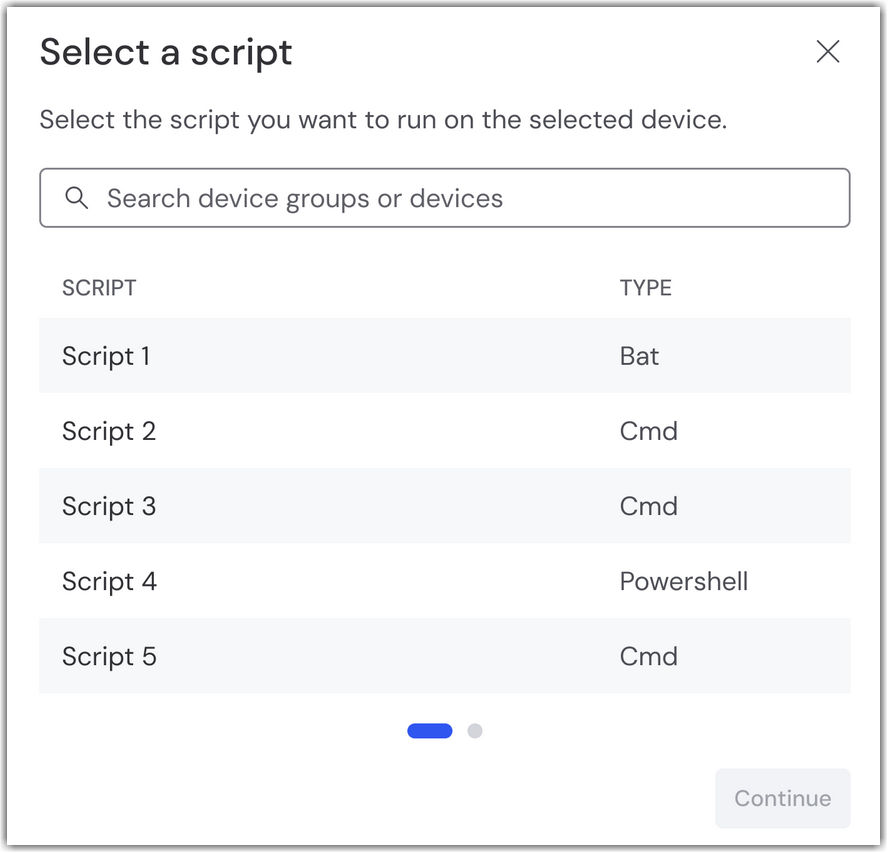
Select the desired script by clicking on the script name, and click Continue.
5. Enter the Username and Password of the user for the device where the script will be executed (or only Username if the user is logged in).
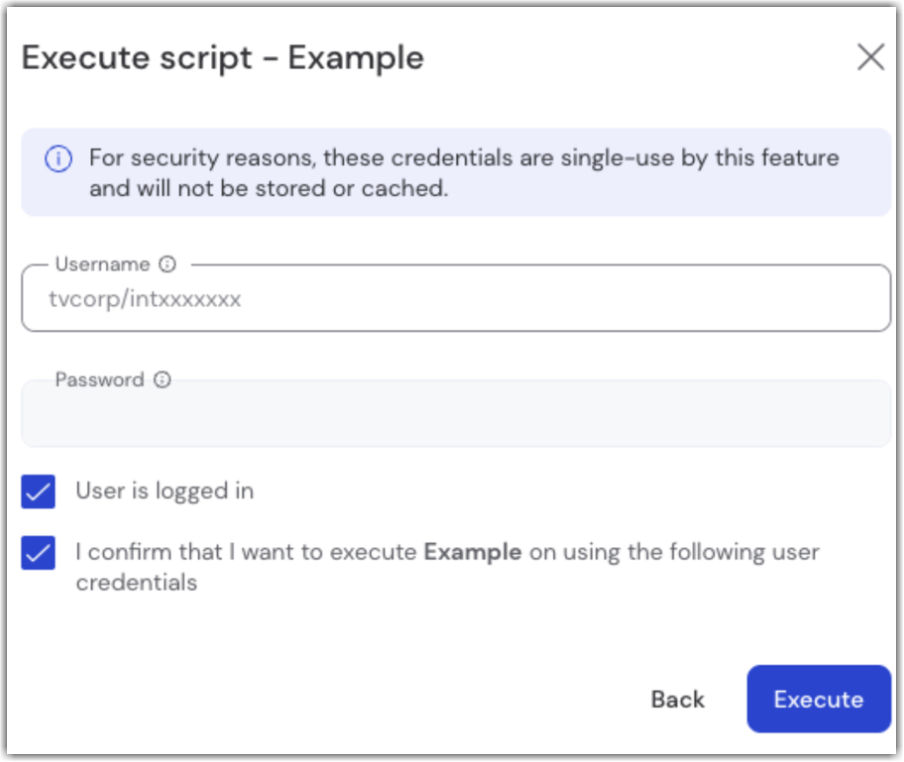
6. Click Execute.