
Knowledge Base
Whiteboard
Last Modified: Dec 2, 2025
The Web User has two options to share the content of a Whiteboard during a call:
- Use the live mode to share a live view of your drawing process with the call participants. To do this:
- Click on the Whiteboard tab on the top left.
- Click on Start Sharing. After this, the participants will be notified and they will be able to view your drawings live.
- Draw on the whiteboard.
- Draw something on the whiteboard and share the finished drawing with call participants. To do this:
- Click on the Whiteboard tab on the top left.
- Draw on the whiteboard.
- Click on the Archive the file in the call log button that is on the left of the Start Sharing button.
(Both the Start Sharing and the Archive file in the call log icons are shown within the table below.)
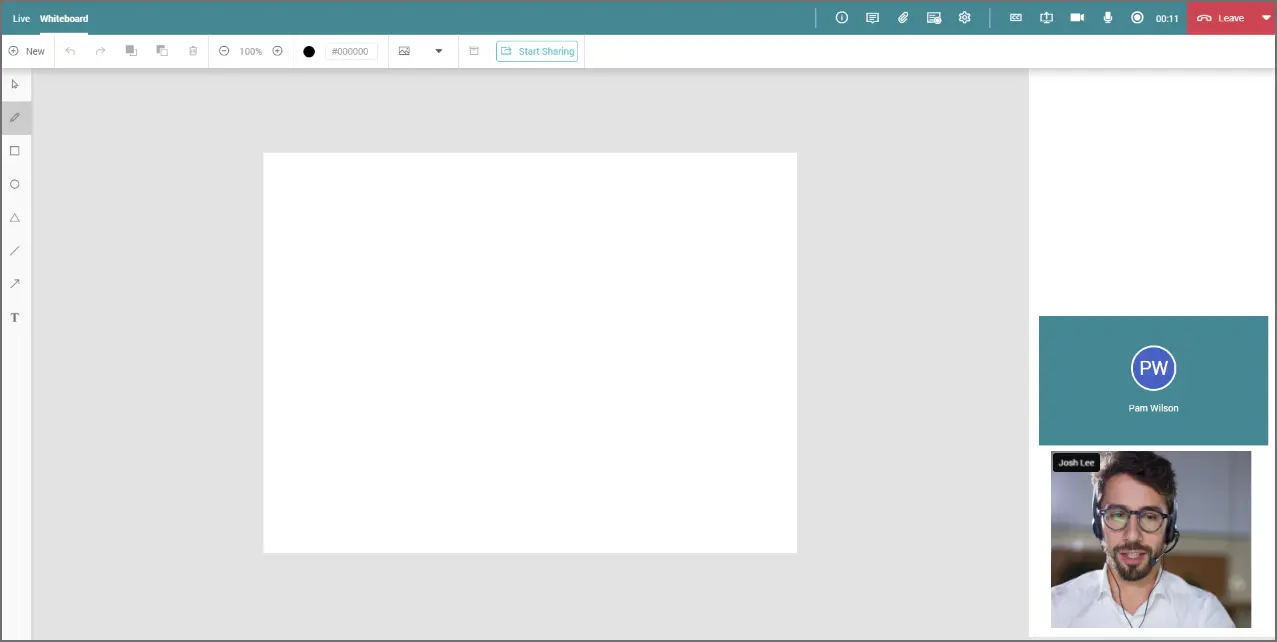
Whiteboard Options
The options available for the Whiteboard functionality are:

New: Starts a new whiteboard

Undo: Removes the last item drawn on the whiteboard

Redo: Re-draws a deleted item if Undo was used

Bring Forward: Brings the selected object to the front

Send Back: Sends the selected object to the back

Remove Selected: Deletes the selected item

Zoom: Zooms in and out on the whiteboard

Color: Enables the user to choose from different colors during annotations

Upload: Allows the user to upload pictures on the whiteboard

Archive: Saves the drawn file in the chat log

Start Sharing: Shares the whiteboard with other users available on the call
Annotation Tools
The options available for Annotation Tools are:

Selector: Acts to select and move objects on the whiteboard

Pen: Writes or draws on the whiteboard

Rectangle: Draws rectangular shapes on the whiteboard

Circle: Draws circles on the whiteboard

Triangle: Draws Triangles on the whiteboard

Line: Creates lines on the whiteboard

Arrow: Draws arrows of different sizes

Text: Allows the user to type on the whiteboard