
Knowledge Base
Android Smartphone
Last Modified: Jun 4, 2024
Downloading and installing the app
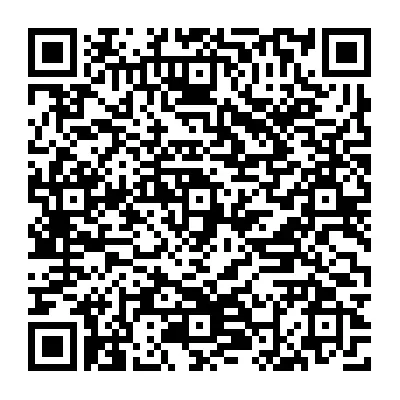
The Frontline Workplace application for Android can be found in the Google Play Store. Alternatively, it can be downloaded by scanning the QR Code below:
After successfully downloading the app, you will be prompted to the screen below:
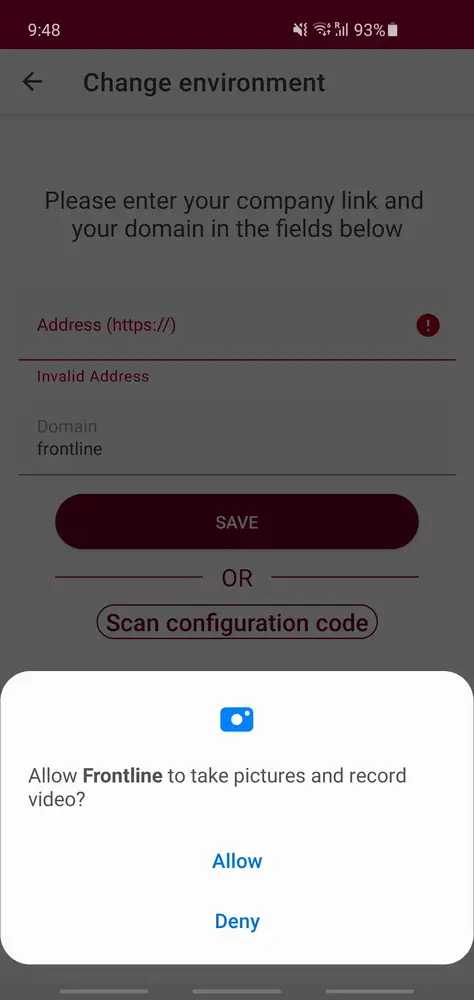
Follow installation instructions to complete the setup process.
Pairing the app with the server
If you are using the application for the first time, you need to pair it with the right server instance.
This can be done in three ways:
1. Click on the link in the welcome email you received when your account was created.
2. Enter your company's Frontline Workplace server URL and domain.
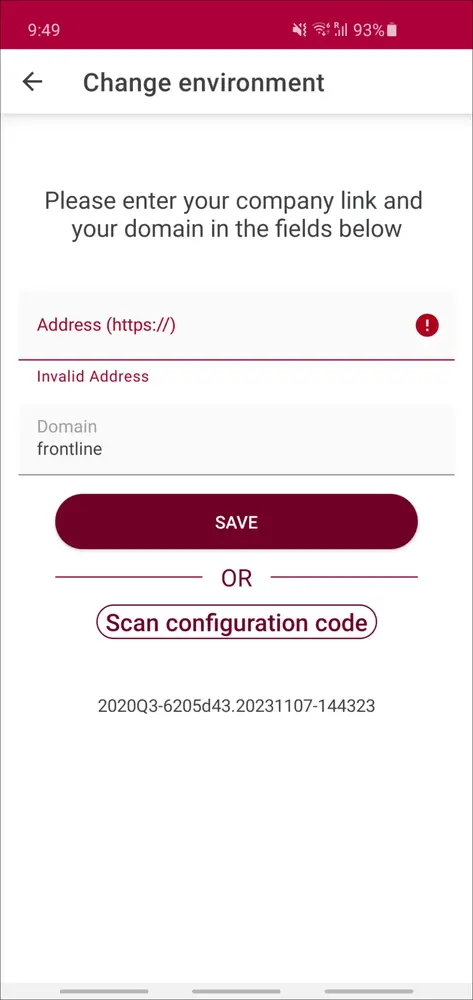
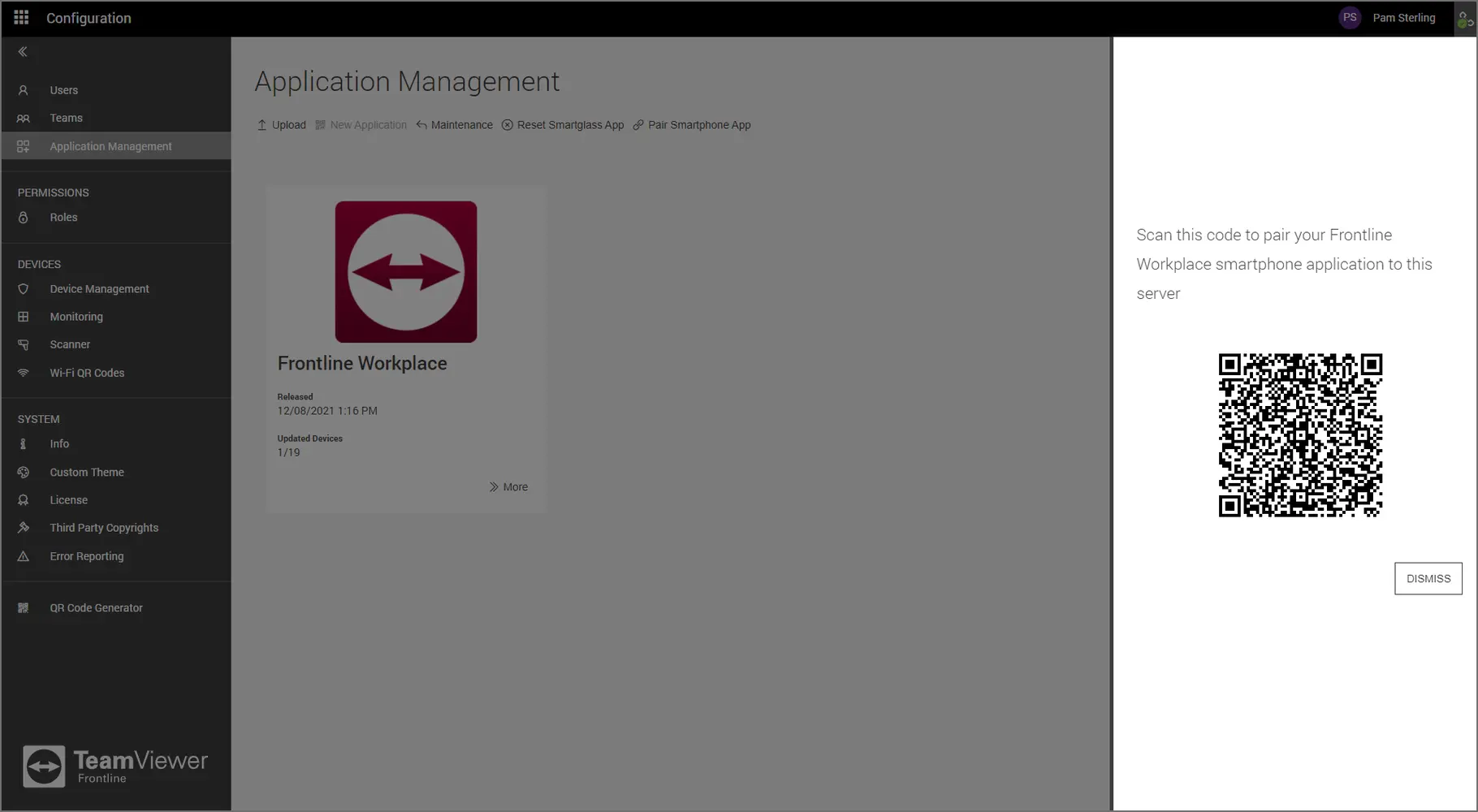
3. Scan a configuration code. The configuration code can be viewed by following the steps below:
a. Open a Web Browser.
b. On the Home page, click the Menu icon on the top left corner of the screen.
c. Sign in to the Frontline Command Center using your administrator's URL, domain, and credentials.
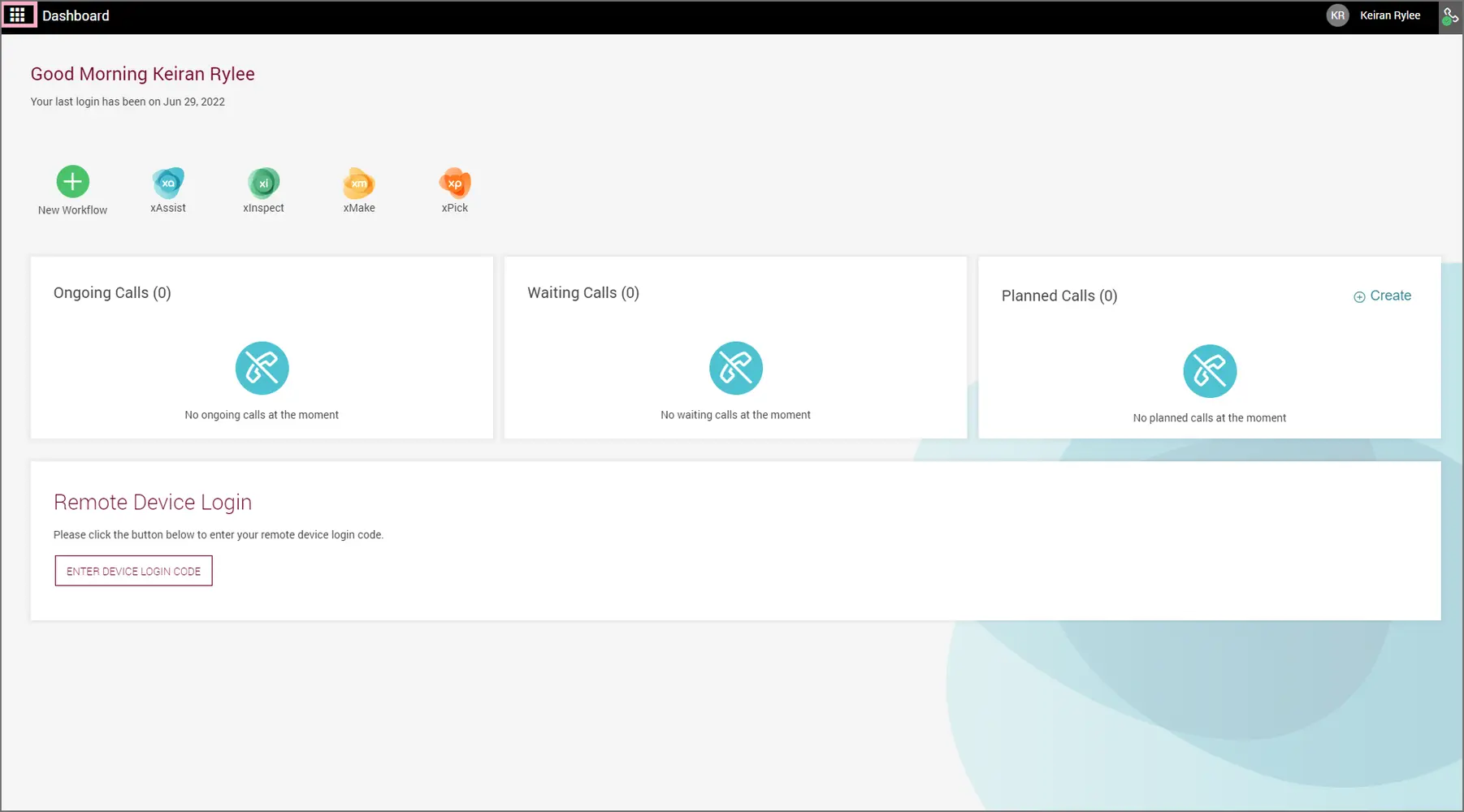
4. Click on Configuration > Application Management > Pair Smartphone App.
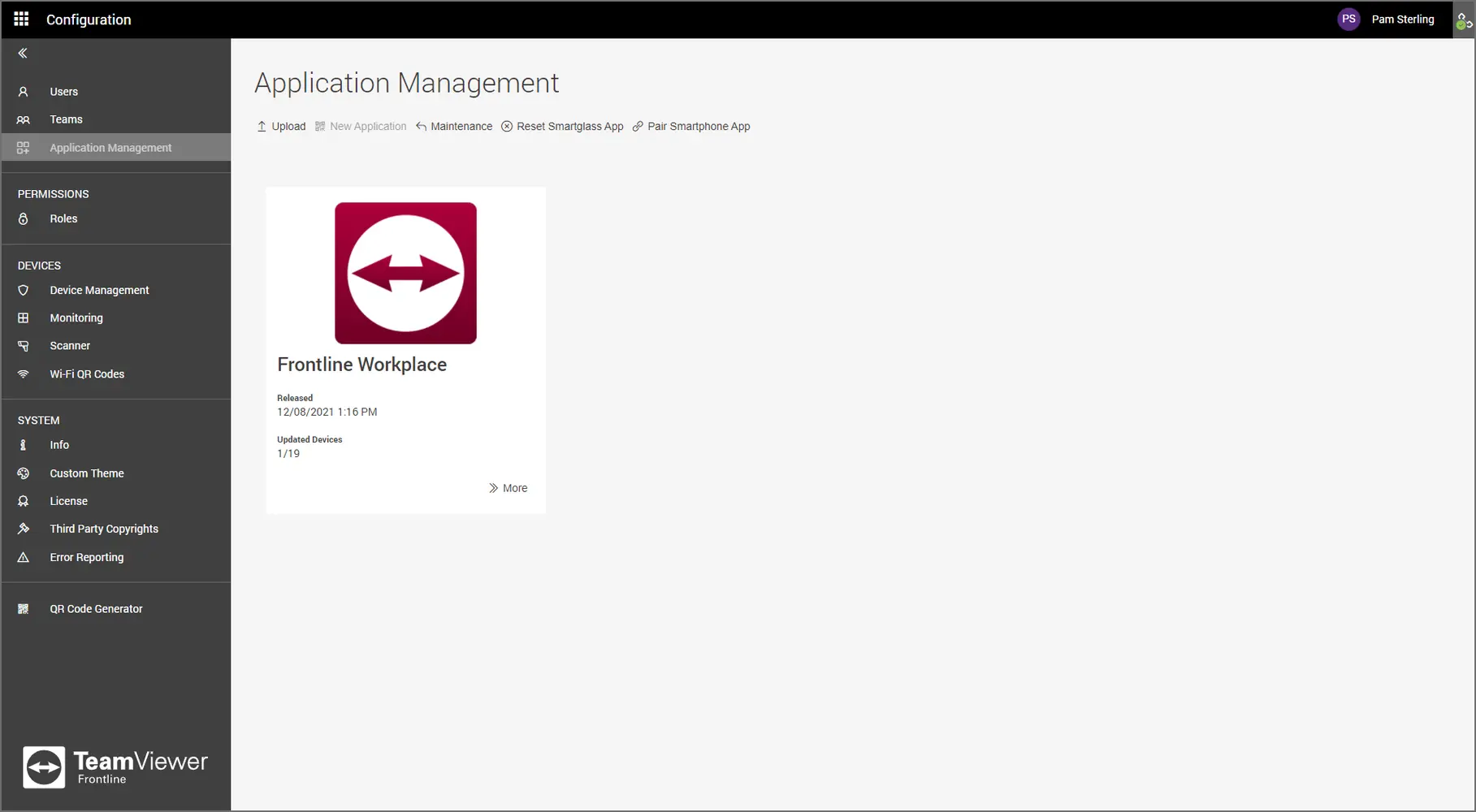
5. Scan this configuration code with your mobile device and click Save.
Note: Learn how to Sign in to the Frontline Workplace application to access the tools and features for Android smartphones.