To connect two steps, click and drag from the out-connection dot of a step, instruction component or a marker to the in-connection dot of the other:
Extra markers: When adding more than one marker, the extra markers will not be automatically connected. The user has to connect them manually. This allows the user to choose whether the workflow can be started with different markers or whether markers are placed in the middle of the workflow for calibration.
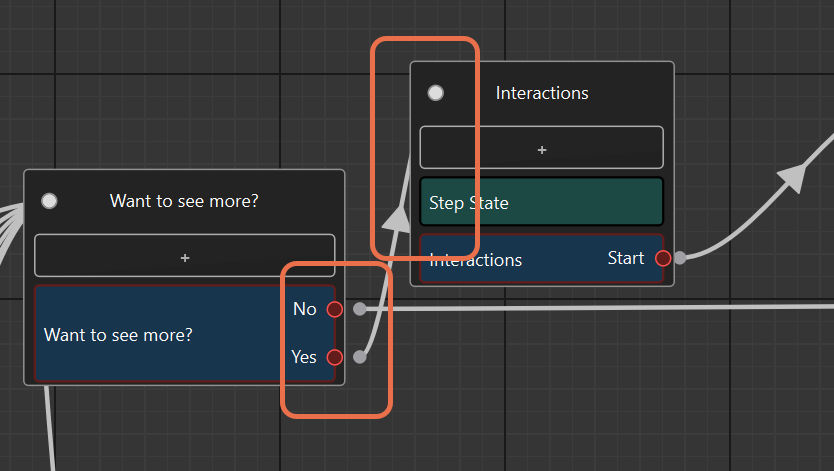
Using connections to create decision trees: The connections between the instruction components follow decision-tree logic. This means that more than one arrow connection can be drawn from a single instruction component to different ones. The user can choose which path to follow when running the workflow in the Spatial Workplace app.
With default connection labels
Connections with the same name are combined in Spatial Workplace. In the following example, the user will see only one Done button when visualizing an instruction component 1 since the two connections coming out of it have the default connection label. After the user clicks on Done at component 1, both components 2 and 3 will appear.
Each of the two instruction components has a separate Done button, since their outgoing connections are two different steps. Now, the user chooses the workflow path by selecting the corresponding button.
With custom connection labels
In this case, the connections coming out of the instruction component-1 have different custom labels. In this case, the user sees two buttons in the Spatial Workplace app: Red and Blue. This means they have already select the path to follow based on the button they choose.