
ナレッジベース
MobileIronとの統合 - TeamViewerアプリをmacOSに追加する方法
最終変更: 2024/03/13
この記事では、アクセシビリティ権限を展開することによって、TeamViewerを大規模展開シナリオでmacOS Mojaveに展開する方法について説明します。
この例では、Mobile IronをMDMソリューションとして使用しています。ユーザー補助の権限の設定をサポートするその他のMDMソリューションも同様に機能します。
この記事は、CorporateまたはTensorライセンスを所有しているすべてのTeamViewerユーザーに適用されます。
また、TeamViewerバージョン14.3以降をご利用していて、MacOS Mojave以降(MacOS 10.14以降)をご利用のユーザーに向けたご案内です。
実行する手順
1.Mobile Ironを開き、上部のメニューから設定に移動します。
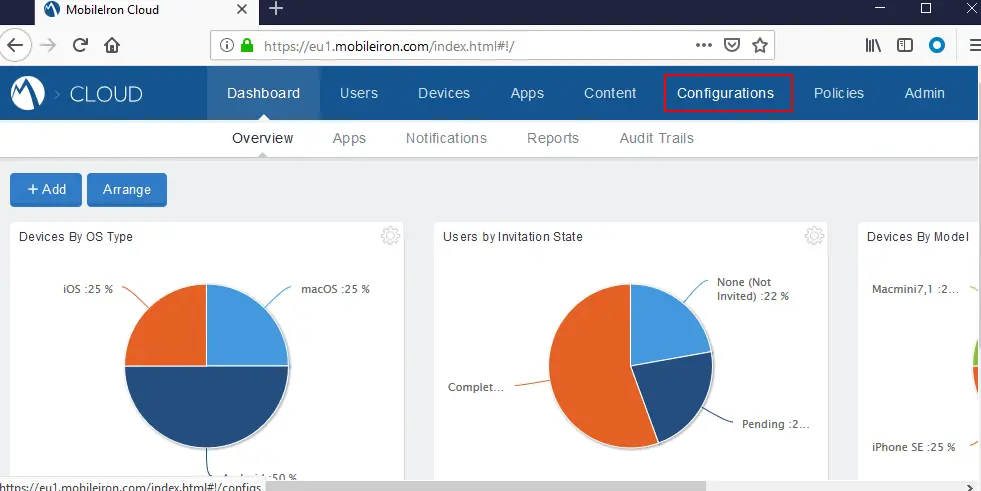
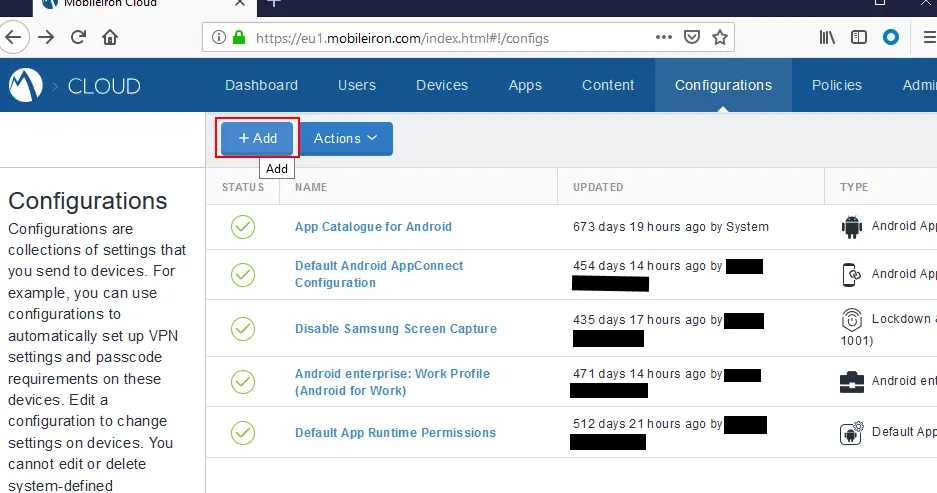
2.新しい設定を追加するには、追加を選択します。
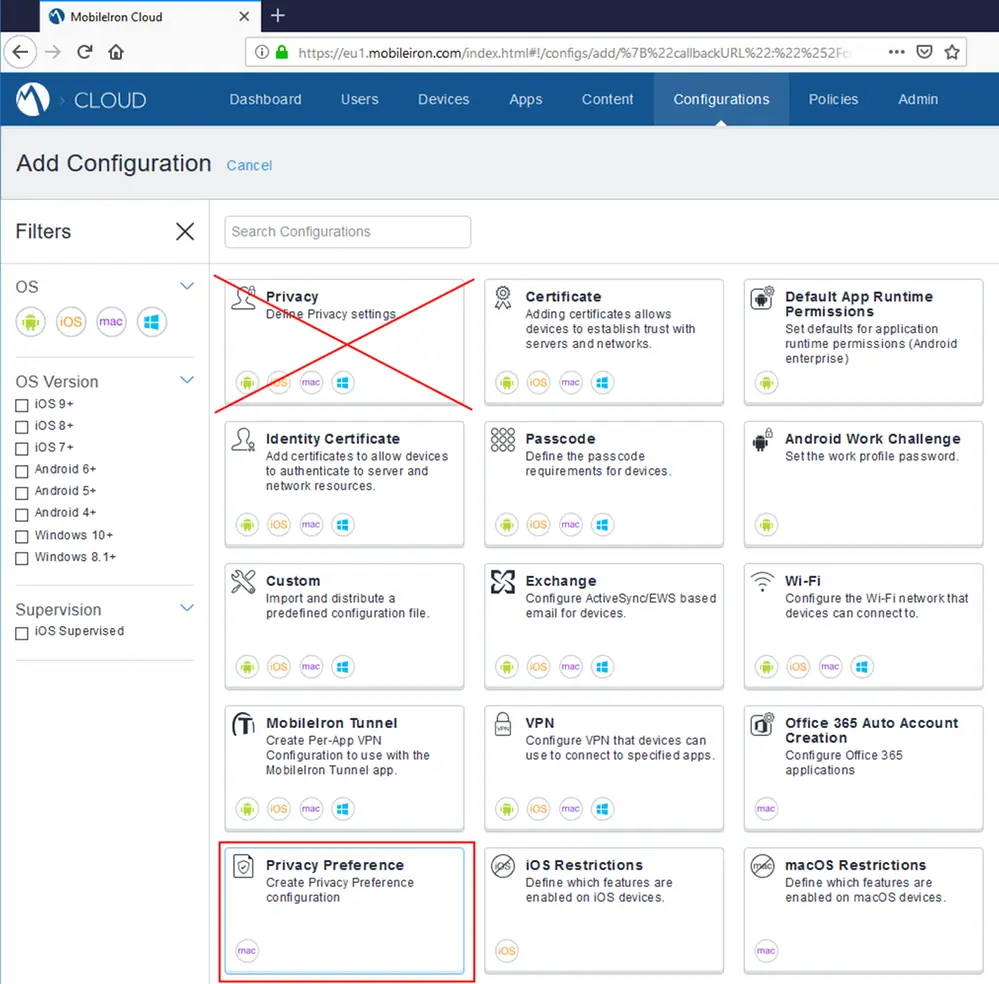
3.プライバシー設定を選択します。
4.新しい設定の名前を入力します。
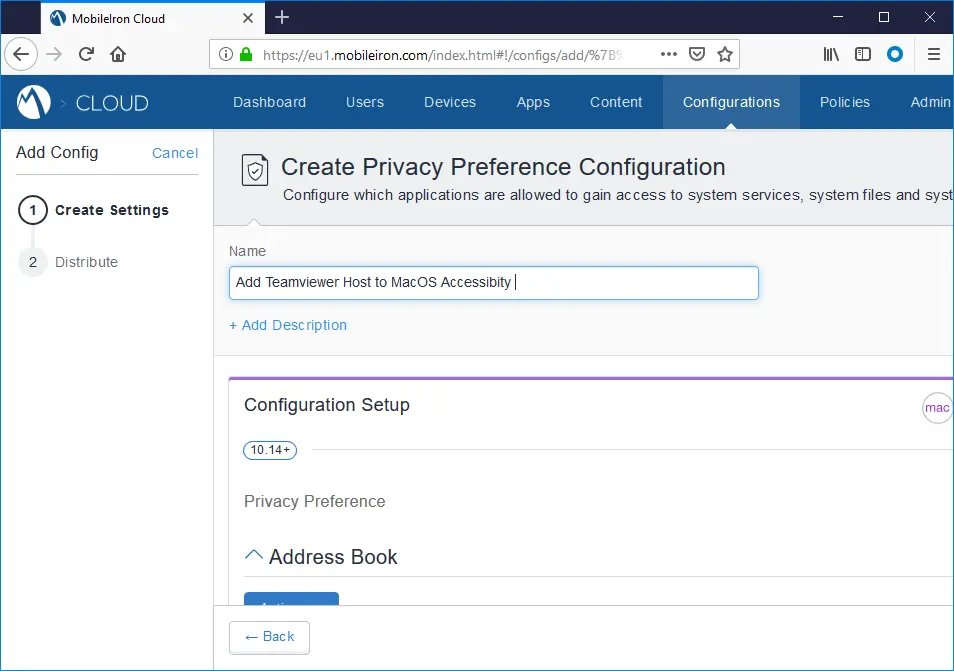
5.アクセシビリティまでスクロールして、新しいアクションを追加します。
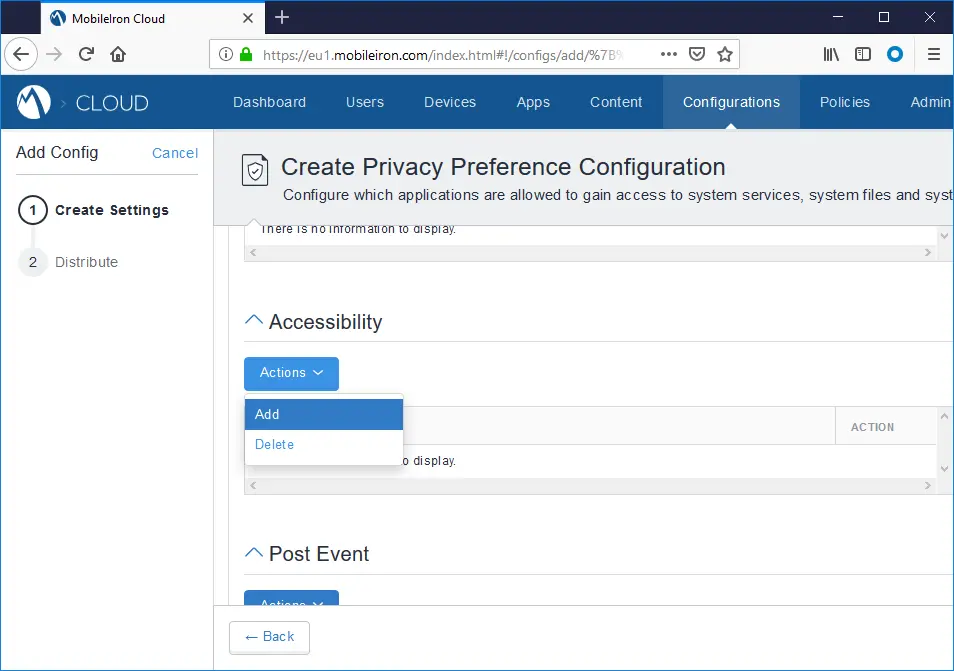
6.使用しているアプリに応じて、次のバンドル識別子を使用してください。
| App version | Bundle identifier | Code requirement |
|---|---|---|
TeamViewer Full Client | com.teamviewer.TeamViewer | anchor apple generic and identifier "com.teamviewer.TeamViewer" and (certificate leaf[field.1.2.840.113635.100.6.1.9] /* exists */ or certificate 1[field.1.2.840.113635.100.6.2.6] /* exists */ and certificate leaf[field.1.2.840.113635.100.6.1.13] /* exists */ and certificate leaf[subject.OU] = H7UGFBUGV6) |
TeamViewer Full start as service | com.teamviewer.TeamViewer | anchor apple generic and identifier "com.teamviewer.TeamViewer" and (certificate leaf[field.1.2.840.113635.100.6.1.9] /* exists */ or certificate 1[field.1.2.840.113635.100.6.2.6] /* exists */ and certificate leaf[field.1.2.840.113635.100.6.1.13] /* exists */ and certificate leaf[subject.OU] = H7UGFBUGV6) |
- | com.teamviewer.Desktop | anchor apple generic and identifier "com.teamviewer.TeamViewer" and (certificate leaf[field.1.2.840.113635.100.6.1.9] /* exists */ or certificate 1[field.1.2.840.113635.100.6.2.6] /* exists */ and certificate leaf[field.1.2.840.113635.100.6.1.13] /* exists */ and certificate leaf[subject.OU] = H7UGFBUGV6) |
TeamViewer Host | com.teamviewer.TeamViewerHost | anchor apple generic and identifier "com.teamviewer.TeamViewerHost" and (certificate leaf[field.1.2.840.113635.100.6.1.9] /* exists */ or certificate 1[field.1.2.840.113635.100.6.2.6] /* exists */ and certificate leaf[field.1.2.840.113635.100.6.1.13] /* exists */ and certificate leaf[subject.OU] = H7UGFBUGV6) |
TeamViewer QuickSupport | com.teamviewer.TeamViewerQS | anchor apple generic and identifier "com.teamviewer.TeamViewerQS" and (certificate leaf[field.1.2.840.113635.100.6.1.9] /* exists */ or certificate 1[field.1.2.840.113635.100.6.2.6] /* exists */ and certificate leaf[field.1.2.840.113635.100.6.1.13] /* exists */ and certificate leaf[subject.OU] = H7UGFBUGV6) |
上記の表のコード・コピーペースト用
アプリのバージョン: TeamViewer Full normal
バンドルID: TeamViewer Full normal
コード: anchor apple generic and identifier "com.teamviewer.TeamViewer" and (certificate leaf[field.1.2.840.113635.100.6.1.9] /* exists */ or certificate 1[field.1.2.840.113635.100.6.2.6] /* exists */ and certificate leaf[field.1.2.840.113635.100.6.1.13] /* exists */ and certificate leaf[subject.OU] = H7UGFBUGV6)
_____
アプリのバージョン: TeamViewer Full start as service
バンドルID: com.teamviewer.TeamViewer
コード: anchor apple generic and identifier "com.teamviewer.TeamViewer" and (certificate leaf[field.1.2.840.113635.100.6.1.9] /* exists */ or certificate 1[field.1.2.840.113635.100.6.2.6] /* exists */ and certificate leaf[field.1.2.840.113635.100.6.1.13] /* exists */ and certificate leaf[subject.OU] = H7UGFBUGV6)
_____
アプリのバージョン: -
バンドルID: com.teamviewer.Desktop
コード: anchor apple generic and identifier "com.teamviewer.TeamViewer" and (certificate leaf[field.1.2.840.113635.100.6.1.9] /* exists */ or certificate 1[field.1.2.840.113635.100.6.2.6] /* exists */ and certificate leaf[field.1.2.840.113635.100.6.1.13] /* exists */ and certificate leaf[subject.OU] = H7UGFBUGV6)
_____
アプリのバージョン: TeamViewer Host
バンドルID: com.teamviewer.TeamViewer Host
コード: anchor apple generic and identifier "com.teamviewer.TeamViewerHost" and (certificate leaf[field.1.2.840.113635.100.6.1.9] /* exists */ or certificate 1[field.1.2.840.113635.100.6.2.6] /* exists */ and certificate leaf[field.1.2.840.113635.100.6.1.13] /* exists */ and certificate leaf[subject.OU] = H7UGFBUGV6)
_____
アプリのバージョン: TeamViewer QuickSupport
バンドルID: com.teamviewer.TeamViewer QS
コード: anchor apple generic and identifier "com.teamviewer.TeamViewerQS" and (certificate leaf[field.1.2.840.113635.100.6.1.9] /* exists */ or certificate 1[field.1.2.840.113635.100.6.2.6] /* exists */ and certificate leaf[field.1.2.840.113635.100.6.1.13] /* exists */ and certificate leaf[subject.OU] = H7UGFBUGV6)
_____
TeamViewer Hostの例:
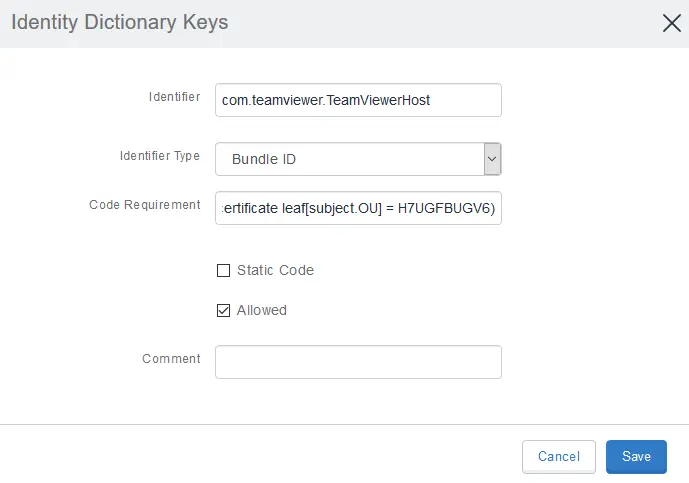
- 識別子フィールドに、teamviewer.TeamViewer Hostを追加します。
- 識別子の種類フィールドで、[バンドルID]を選択します。
- コード要件フィールドに:
anchor apple generic and identifier "com.teamviewer.TeamViewerHost" and (certificate leaf[field.1.2.840.113635.100.6.1.9] /* exists */ or certificate 1[field.1.2.840.113635.100.6.2.6] /* exists */ and certificate leaf[field.1.2.840.113635.100.6.1.13] /* exists */ and certificate leaf[subject.OU] = H7UGFBUGV6)を追加します。 - 保存をクリックします。
- 新しい設定が作成され、ユーザー補助の下に表示されます。
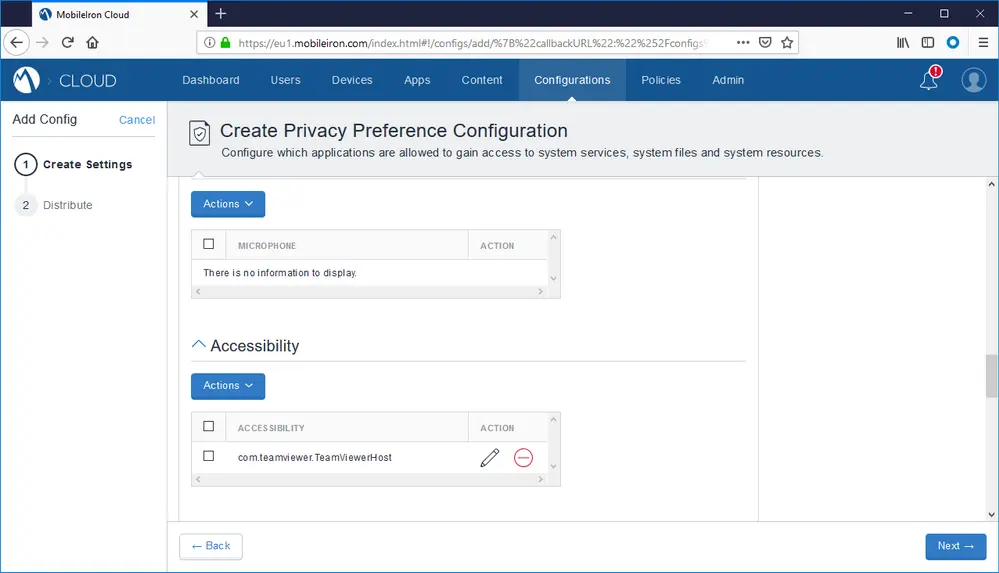
- 次へをクリックします。
- これで、この新しい設定を配布したいデバイスを選択できます。
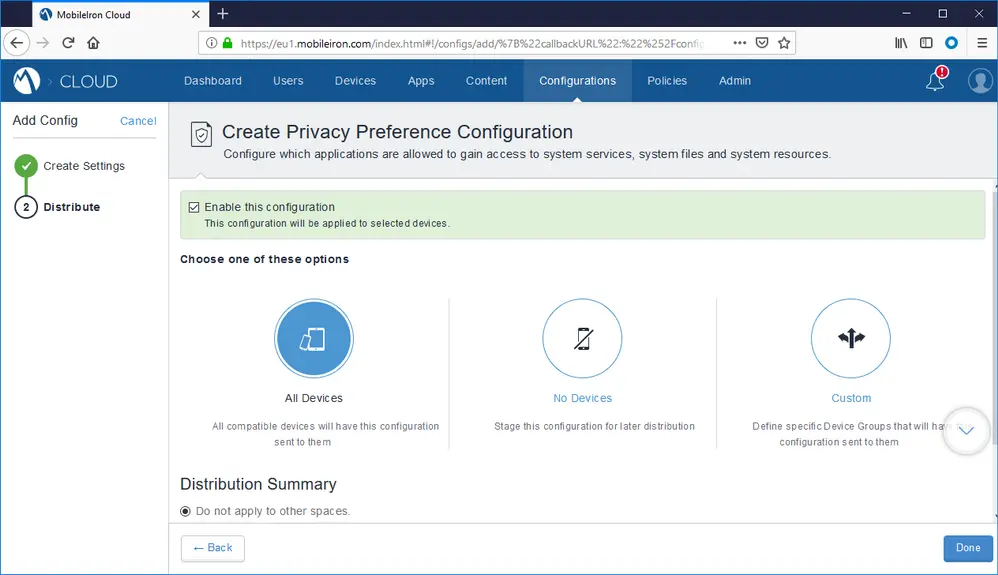
- 新しい設定を配布したいデバイスを選択します。(例:「すべてのデバイス」)
- 完了を押します。
MobileIronで適用された設定のステータスを確認する
Mobile Ironは、選択されたデバイスのアクセシビリティに対する選択されたTeamviewerアプリになります。これは、設定、デバイスのオンライン状態、および設定中の他の手順によっては時間がかかることがあります。
特定のデバイス上のあなたの設定の現在の状態(例えば更新、保留中)は上部メニューの中の "デバイス"の下でチェックできます。しばらくすると、構成が「保留中のインストール」から「インストール済み」に変わります。
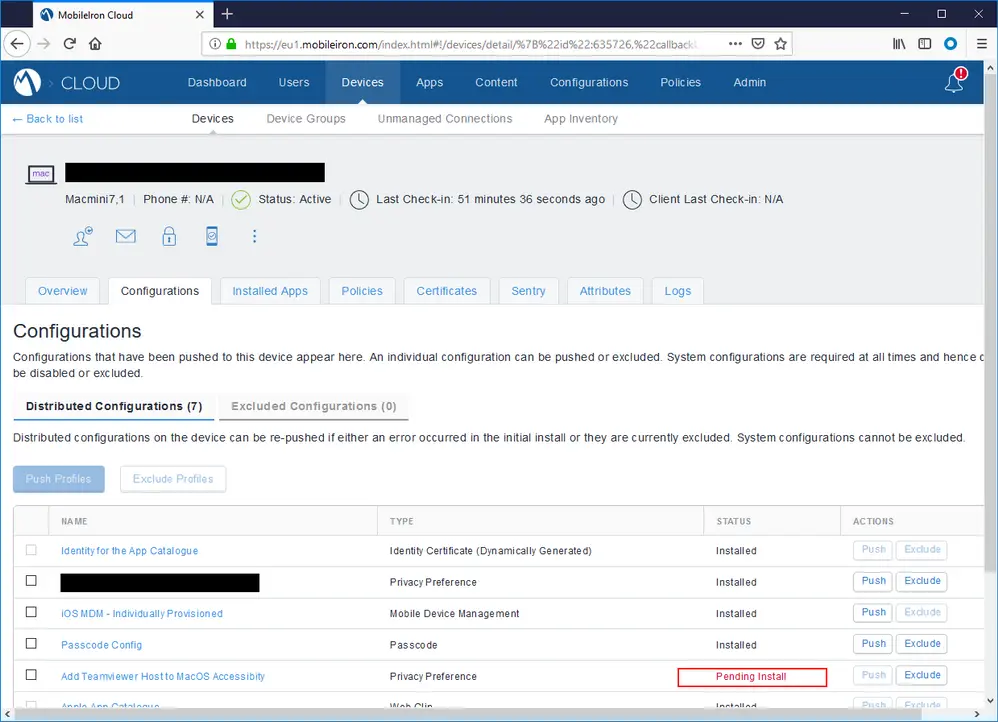
macOSで直接設定を確認する
MobileIronがデバイスに設定を適用した後、設定が正常に更新されたかどうかmacOSデバイスに確認することができます。
ターゲットのmacOSデバイスでシステム環境設定を開きます。
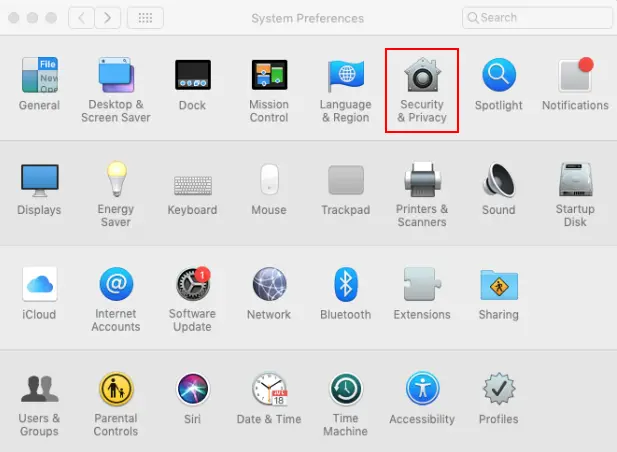
- セキュリティとプライバシーページを開きます。
- プライバシータブに切り替えます。
- 環境設定を選択してください。
- Teamviewerは、アクセシビリティ権限を有効にした状態でそこに表示されるはずです。
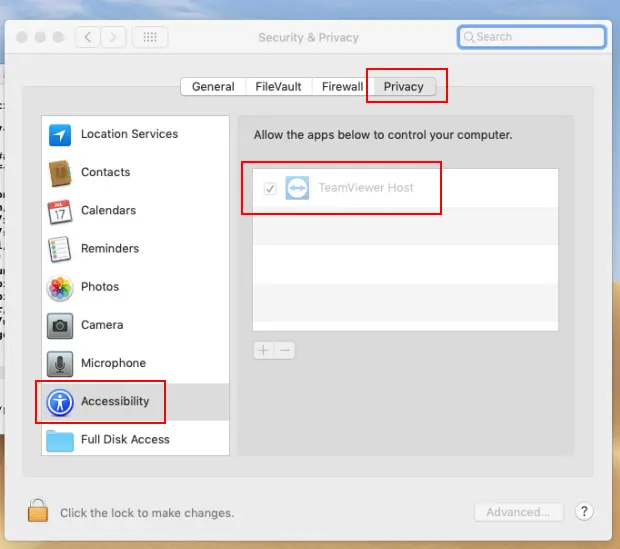
ルールが正常に適用されたのにTeamViewerが表示されていない場合は、TeamViewerをまだデバイスにインストールしていない可能性があります。 TeamViewerがインストールされていないと、このページに表示されません。 Teamviewerをインストールした後、必要な許可を得て自動的に「アクセシビリティ」に反映されます。